
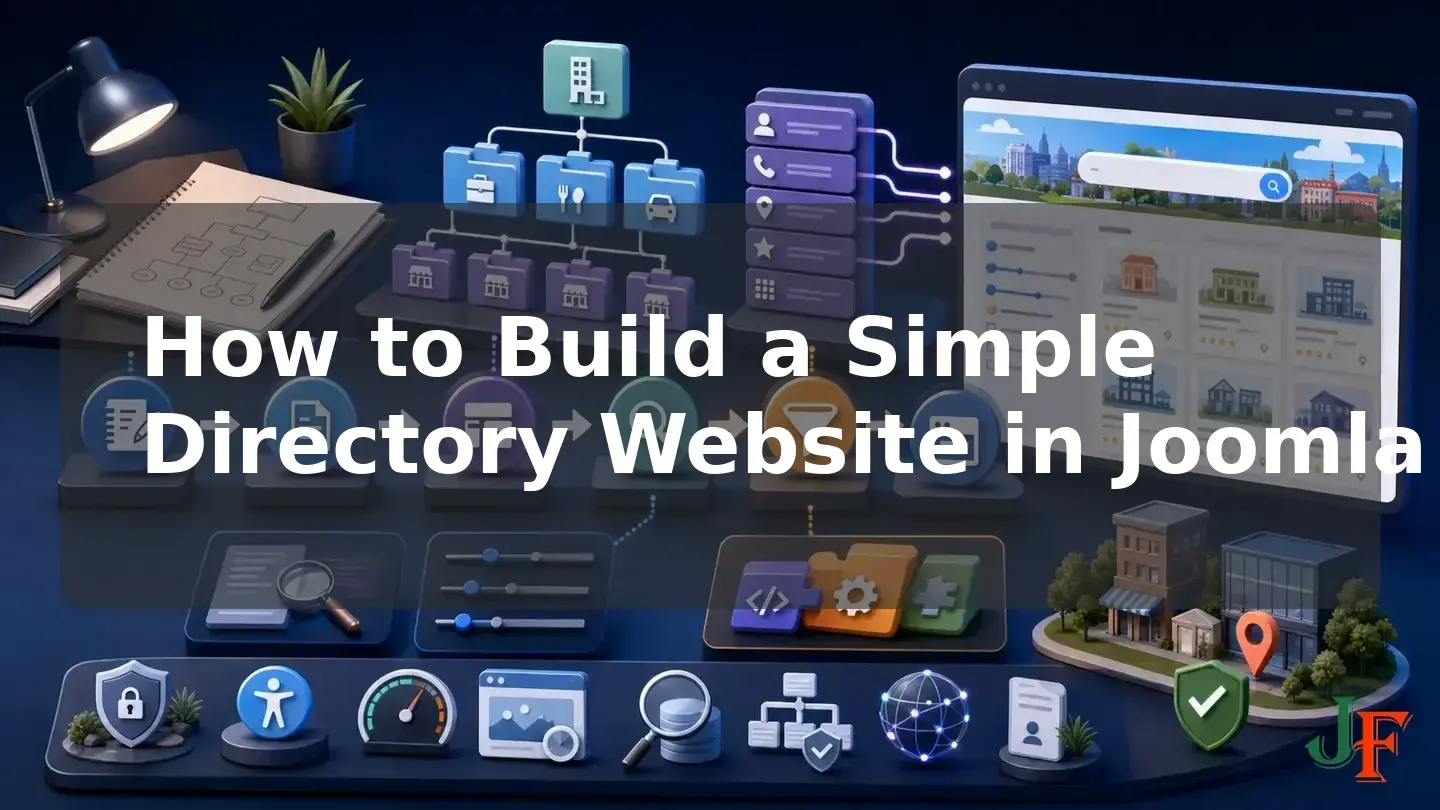
A Joomla directory website does not have to begin with a specialist directory extension. For a simple, editorially managed directory, Joomla core can provide a practical foundation: store each business or organization as an article, arrange listings in article categories, record structured details in custom fields, and publish browsable directory pages through menu items.
This tutorial builds that lightweight model with Joomla 6.1 as the primary target. You will plan a category structure, create reusable field groups, add a sample business listing, publish Category Blog or Category List pages, configure Smart Search, and prepare listing and index pages for search engines and visitors.
Core Joomla is appropriate when administrators or trusted editors manage a modest directory. It is not a complete specialist directory platform. Visitor dashboards, claimed listings, reviews, payments, map-radius searches, and polished multi-field faceting require additional research, custom development, or a suitable extension.
Plan the structure carefully before entering content. Your choice of categories, fields, menu items, and aliases will affect editing, browsing, search, and routing throughout the site.
What a Joomla directory website is
The core architecture used in this tutorial is straightforward:
- One article per listing: each business, professional, venue, or organization gets an individual article and detail page.
- Article categories for the primary hierarchy: categories organize listings by the most important browsing dimension.
- Custom fields for structured attributes: fields hold details such as address, telephone number, opening hours, services, price range, and accessibility features.
- Menu items for index pages: Category Blog and Category List views expose groups of listings to visitors.
- Smart Search for text search: Joomla indexes eligible content and provides search through a module or menu item.
This is a lightweight use of Joomla's article system rather than a complete Yelp-style platform. The official documentation confirms that articles, nested categories, category layouts, fields, and menu items supply the underlying building blocks for this model: Articles and Categories, Fields and Field Groups, and Menu Items.
When Joomla core is sufficient
Use the core approach when listings are primarily created and maintained by site administrators or trusted editors, the browsing hierarchy is uncomplicated, and visitors mainly need category browsing plus text search. It is especially useful for a local association directory, a curated supplier list, a community resource directory, or an internal organization index.
Plan for custom development or a separately researched directory extension if the project requires user dashboards, claimed listings, paid plans, recurring renewals, reviews, geocoding, map-radius search, advanced front-end faceting, comparison tools, availability systems, or complex bulk-import and moderation workflows. No third-party product is recommended here because compatibility, maintenance, pricing, and security were not evaluated for this tutorial.
Related guidance: check Joomla extension compatibility.
Version and hosting prerequisites
As of 17 September 2026, Joomla 6.1.3 is the current stable production release and is the primary target for this tutorial. Joomla 5.4.8 is also a stable maintained release, while Joomla 6.2 remains prerelease software and is not the production target. Verify these time-sensitive details against the official Joomla Project Roadmap and Release News before publication or implementation.
Joomla 5.x is scheduled to leave regular bug-fix support on 13 October 2026 and remain in security-only support through 12 October 2027. Joomla 6.x has regular bug-fix support scheduled through 17 October 2028 and security support through 16 October 2029. These are scheduled lifecycle dates, not permanent guarantees, so confirm them on the roadmap.
For Joomla 6.x, the official requirements list PHP 8.3.0 as the minimum, PHP 8.4 as recommended, and at least 256 MB of PHP memory as recommended. Confirm the supported database, web-server, and PHP-module requirements for the actual host. Apache mod_rewrite and the IIS URL Rewrite Module are optional modules used when rewritten SEO URLs are required. The cited Technical Requirements page is under the upcoming documentation branch, although its table is headed for Joomla 6.x, so recheck its branch and requirements before deployment.
Plan the directory content model
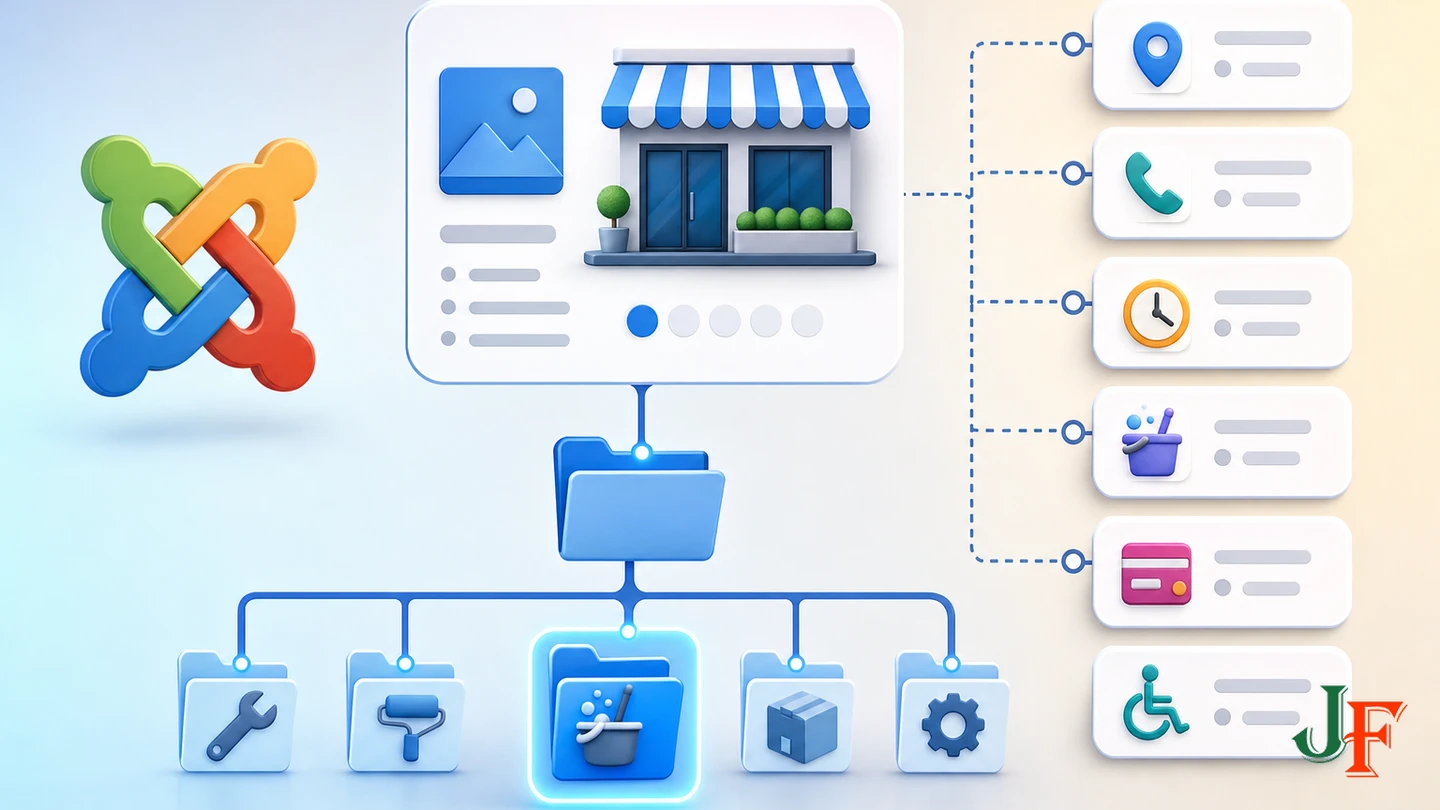
Do not begin by creating dozens of categories. First decide which single dimension should control the main hierarchy. A Joomla article occupies only one position in the article-category tree, although categories themselves can be nested. That constraint makes categories suitable for one primary directory dimension, not every attribute a listing might have. The behavior is documented in Articles and Categories.
For example, a business directory Joomla site could organize by service:
- Directory
- Home Services
- Plumbers
- Electricians
- Landscapers
- Professional Services
- Accountants
- Legal Services
- Home Services
A plumber in Bristol would go in the Plumbers category. Store Bristol, emergency service availability, accepted payment methods, and accessibility details as fields or other cross-cutting data instead of attempting to place the article in several categories. If geographic browsing is the directory's dominant task, reverse the model and use location as the category hierarchy.
Prepare a content worksheet
Before configuring Joomla, create a worksheet with one row for every required attribute:
| Attribute | Storage choice | Example |
|---|---|---|
| Business name | Article title | Riverside Plumbing |
| Primary service | Article category | Plumbers |
| Summary and description | Article content | Services, experience, and coverage |
| City | Custom field | Bristol |
| Telephone | Custom field | Business contact number |
| Website | Custom field | Business website URL |
| Opening hours | Custom field | Weekday and weekend hours |
| Services and amenities | Custom fields or tags | Emergency call-outs |
| Logo or representative image | Article image or suitable field | Optimized business image |
Use consistent field values. For example, decide whether the location value will be “Bristol,” “City of Bristol,” or a broader region before editors begin entering listings.
Related guidance: planning Joomla article categories.
Step 1: Create the category tree
- Open the article-category manager in the Joomla administrator interface.
- Create a top-level category such as Directory.
- Create the first level of browsing categories, such as Home Services and Professional Services.
- Add narrower child categories only where they help visitors, such as Plumbers.
- Give every category a clear title, concise alias, and useful description.
- Check that categories are published and that their access levels match the intended audience.
Keep the initial tree small enough to understand. Articles assigned to a category automatically appear in menu-controlled category layouts according to that menu item's parameters, so adding a new listing should not require manually editing an index page. Category Blog and Category List are documented core layouts in Articles and Categories.
Step 2: Create field groups and Joomla custom fields
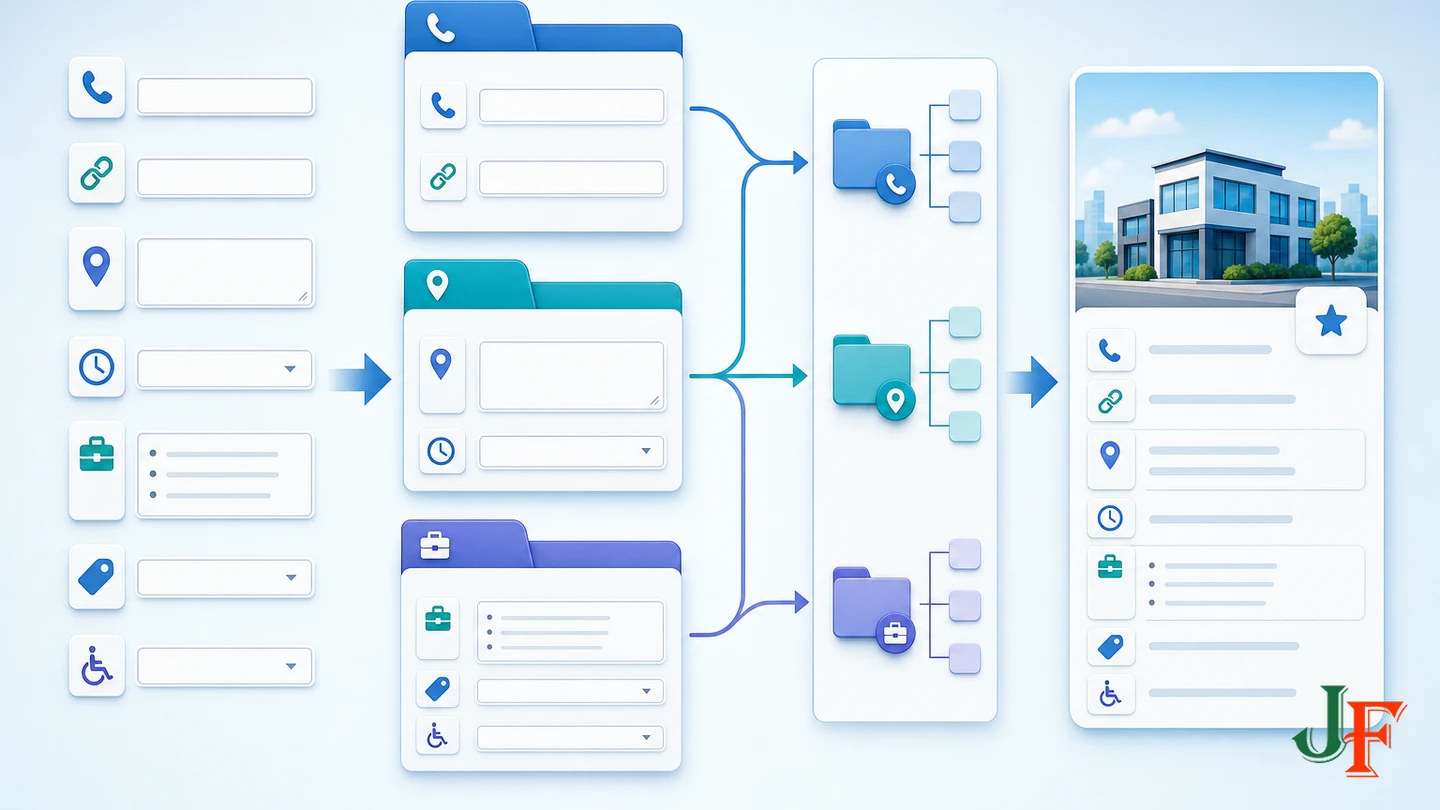
Field groups make a long listing form easier for editors to understand. Article custom fields can be assigned to one or more categories, while groups appear as separate tabs in the article-editing interface. This lets you expose directory fields only where they are relevant instead of adding them to unrelated website articles. See Fields and Field Groups.
Create practical field groups
- Contact Details: telephone, email, website URL.
- Location: street address, city, state or region, postal code, map link.
- Business Details: opening hours, services, price range, accessibility features.
Add fields to the groups
- Open the article-fields area and create the first field.
- Select a field type appropriate to the information being stored.
- Give it an editor-friendly label and a stable alias.
- Assign it to the appropriate field group.
- Restrict its category assignment to the directory categories that need it.
- Choose a display position suitable for the listing page.
- Repeat the process for the remaining attributes.
- Create a test article and confirm how completed and empty values appear on the site.
Empty fields generally are not displayed, but individual field types can behave differently and must be tested. Custom-field configuration can include display options and a Smart Search Search Index setting. The cited Number Field page documents those options for that field type; do not assume that every Text, List, Checkboxes, URL, Media, or other field has identical modes or semantics. Inspect and test the available Search Index options for every field type on the target Joomla version.
Related guidance: complete Joomla custom fields tutorial.
Step 3: Build a reusable business-listing example
Create one complete test listing before importing or entering the rest. A useful example might include:
- Article title: Riverside Plumbing
- Category: Plumbers
- Alias: riverside-plumbing
- Introduction: a concise explanation of the service area and main offering
- Full description: services, experience, opening arrangements, and visitor information
- Contact fields: telephone and website
- Location fields: street address, city, region, and postal code
- Business fields: opening hours, services, price range, and accessibility features
- Image: an optimized, relevant image with useful alternative text
- Metadata: a unique description that accurately summarizes this listing
Review the result from an editor's perspective and a visitor's perspective. If editors cannot tell where a value belongs, improve the label or group. If visitors see confusing empty labels, inconsistent values, or an impractical reading order, correct the content model before creating more articles.
Step 4: Add directory listings as articles
- Create a new Joomla article for the business or organization.
- Enter a specific title rather than a generic phrase such as “Local Business.”
- Select the listing's one primary category.
- Write an original introduction and useful detail content.
- Complete the applicable custom fields using the agreed formats.
- Add an optimized image only when it improves the listing.
- Set a descriptive alias and listing-specific metadata.
- Save the article, inspect its front-end output, and correct any inconsistent values.
Do not place essential information only inside an image. Addresses, telephone numbers, hours, and service descriptions should remain understandable as text. Establish an editorial review process for factual updates, expired listings, inappropriate submissions, and contact-detail changes.
Step 5: Create directory and category menu items

Menu items are Joomla's primary navigation units, and their type determines the component view or layout shown. Common configuration includes Page Display and Metadata settings, while a Category Blog also provides blog-layout options. See the official Menu Items guide.
- Open the menu-item manager for the appropriate site menu.
- Create a main Directory item. Depending on the intended experience, use List All Categories, Category Blog, or Category List.
- Select the top-level Directory category or the specific category required by the chosen view.
- Configure the page heading, browser page title, and metadata.
- Add category-specific menu items for important sections such as Plumbers or Accountants.
- Review ordering, pagination, introductory text, and the amount of information displayed.
- Publish the menu items and test every category route.
| Layout | Best use | Check before launch |
|---|---|---|
| Category Blog | Visual introductions or teaser-style listing cards | Image consistency, intro length, ordering, and pagination |
| Category List | Compact, table-like browsing and simple list searching | Useful columns, understandable labels, and mobile readability |
| List All Categories | A landing page that exposes the category hierarchy | Category titles, descriptions, and empty sections |
Add new listings by assigning articles to the correct category rather than manually adding links to the index. Where stable routing or module assignment calls for additional category menu items, plan those routes carefully and avoid unnecessary competing paths to the same content.
Step 6: Configure Smart Search and index the listings
Smart Search is Joomla's core search system in Joomla 4 and later and is enabled by default. Content still must be processed by enabled Finder plugins and included in the search index before it can appear in results. Visitors can use Smart Search through a module or a Search menu item. These requirements are explained in the Smart Search Quickstart.
- Review the Finder plugins and enable the relevant content plugin or plugins.
- Open Smart Search and run the initial index.
- Review indexed content rather than assuming every listing was included.
- Create a Smart Search menu item, publish a Smart Search module, or use both where appropriate.
- Test exact business names, service terms, category words, cities, and representative field values.
- For each custom-field type, verify whether its Search Index setting produces the intended result.
- Reindex after bulk imports or major changes to categories, fields, or the content model.
If listings contain restricted or sensitive information, review autocomplete carefully. Smart Search autocomplete can expose words found in restricted content even when the underlying content is not accessible in results. Disable autocomplete when revealing the existence of restricted listing information would create a privacy problem.
Search is not the same as directory filtering
This distinction prevents one of the most common planning errors in a Joomla directory website:
- Text search lets a visitor enter words and receive indexed results.
- Administrator-configured Smart Search presets limit a particular search module or menu item according to a preset selected by an administrator.
- Visitor-controlled faceted filtering lets visitors actively combine choices such as city, service, accessibility, and price range.
In Joomla's standard Smart Search interface, administrator-created filter presets are selected while configuring the module or menu item; visitors do not directly select those presets. Custom interfaces may provide broader behavior, but Joomla core does not automatically turn arbitrary custom fields into a polished multi-select directory facet form. Field faceting therefore belongs to custom development or a suitably researched extension. This limitation follows from the documented Smart Search behavior and the field-specific Search Index options illustrated in the Number Field documentation.
Create visitor-friendly directory pages
- Use a clear Directory entry in the main navigation.
- Explain what the directory contains before presenting listings.
- Keep category names understandable to the intended audience.
- Display the most useful summary information consistently.
- Use meaningful link text instead of repeated “click here” links.
- Check list and blog layouts at narrow and wide viewport sizes.
- Give visitors a clear route from search results back to category browsing.
- Show only information that has a defined purpose and appropriate permission to publish.
Start with Joomla's configuration-based layout choices. A custom directory-card layout or template override should be developed and tested separately; this tutorial does not provide untested Cassiopeia override code or exact template-file instructions.
Related guidance: create and maintain Joomla template overrides.
Build SEO-friendly listing and category pages

SEO-friendly directory pages require work at both the listing and index levels. Joomla's menu and category structure contributes to generated routes, and the System - SEF plugin can enforce preferred URL forms involving index.php and trailing slashes. This can reduce unnecessary URL variants, but SEF URLs do not guarantee rankings, and every possible menu structure has not been tested. Review the official SEO Basics guidance.
- Stabilize the hierarchy: avoid repeatedly moving established listings between categories.
- Use descriptive aliases: prefer readable listing and category aliases over meaningless identifiers.
- Enable appropriate SEF settings: configure search-engine-friendly URLs and server rewriting only after confirming that the host supports the required rewrite facility.
- Avoid duplicate menu paths: do not create unnecessary competing routes to the same listing.
- Write unique listing titles: Joomla uses the article title as the page title for an individual article.
- Configure index-page titles: composite pages such as Category Blog use the menu-item title for the page title.
- Write listing descriptions: add a concise, relevant meta description to each listing.
- Write directory-page descriptions: configure useful metadata for category, blog, and list pages as well as individual articles.
- Optimize images: use appropriately sized files and meaningful alternative text where the image conveys information.
Metadata should not be left to accidental fallback behavior. If an article has no meta description, Joomla can fall back to a single-article menu-item description and then the global site description; otherwise the description may be omitted. The official Article Metadata documentation explains this behavior and the separate metadata needs of article and composite pages.
Add structured data carefully
Joomla provides a core Schema.org system that generates JSON-LD through schema-type plugins configured from the article's Schema tab. Enable and configure the System - Schema.org plugin and the relevant schema-type plugin, then complete appropriate values on representative listings. The reviewed Schema.org introduction lists Organization among the core types but does not list LocalBusiness.
That documented list should not be converted into a definitive claim about every Joomla 6.1 installation. Check the plugins actually installed before deciding whether local-business-specific markup requires customization or an extension. Structured data does not guarantee rich results or higher rankings; validate the generated output and ensure it matches the visible listing content.
Accessibility, security, privacy, and moderation
Accessibility
Joomla provides an article accessibility checker when the System - Joomla Accessibility Checker plugin is enabled. Run it on representative listings, but do not treat an automated result as proof of complete accessibility. Also test semantic heading order, meaningful links, useful image alternatives, keyboard operation, readable contrast, understandable field labels, and the listing experience at different viewport sizes. See Article: Accessibility Check.
Security, privacy, and moderation
- Keep Joomla and installed extensions updated, and verify compatibility before updates.
- Use a tested backup and staging process before structural changes, imports, or updates.
- Publish only contact and location data that the organization is permitted to disclose.
- Review user roles and editing permissions according to the site's editorial policy.
- Establish a process for corrections, expired listings, inappropriate content, and ownership disputes.
- Treat front-end submissions, media uploads, anti-spam controls, ownership, and approval workflows as a separate advanced project.
- Disable Smart Search autocomplete if restricted listing terms are sensitive.
Related guidance: update Joomla safely.
Performance and maintenance
Optimize business images before upload, keep the category and field model purposeful, and test representative category and search pages. No authoritative numerical listing limit is established here, so measure the actual site rather than relying on an unsupported capacity claim. Rebuild or refresh the Smart Search index after bulk imports or major content-model changes, and verify that scheduled editorial maintenance removes obsolete information.
Directory testing checklist
- Every article is in the intended single primary category.
- Directory fields appear only for the appropriate categories.
- Field labels, values, and output positions are consistent.
- Empty values do not leave confusing output.
- Category Blog, Category List, and directory landing pages show the expected listings.
- Newly published listings appear without manual index-page edits.
- Smart Search finds representative titles, body terms, categories, and tested indexed fields.
- Administrator presets are not mistaken for visitor-selectable facets.
- Aliases, browser titles, and meta descriptions are specific and stable.
- Listings do not have unnecessary competing menu routes.
- Images are useful, appropriately sized, and properly described.
- Restricted information is not exposed through autocomplete.
- Representative pages have received keyboard, accessibility, mobile, privacy, SEO, and performance checks.
- A backup and rollback process has been tested before launch.
back up a Joomla website before structural changes or use a staging copy before editing the production design.
Troubleshooting common directory problems

Smart Search returns no listings
Confirm that the initial index was run, the relevant Finder content plugin is enabled, the articles and categories are published, and no configured search preset excludes the content. Inspect each field type's actual Search Index options rather than assuming that every field is indexed identically. Reindex after imports or major content-model changes.
A custom field does not appear
Check the field's publication state, category assignment, field group, access level, and display position. Confirm that the article has a value for the field. Empty fields generally do not display, but test the specific field type and front-end layout.
A listing appears in the wrong section
Open the article and inspect its category. Because an article has one category position, choose the correct primary category and store secondary attributes in fields or tags instead of duplicating the listing.
Visitors cannot select the Smart Search preset
This is expected in Joomla's standard interface. The administrator selects the preset while configuring a Smart Search menu item or module. A visitor-controlled combination of city, service, and price requires a custom interface or a separately researched extension.
The same listing has several URLs
Review the category and menu structure, remove unnecessary competing routes, and confirm the site's SEF and rewriting configuration. Do not assume that enabling SEF settings alone resolves every routing decision.
Frequently asked questions
Can Joomla core build a business directory?
Yes, for a simple editorially managed directory. Use one article per listing, one primary category hierarchy, custom fields for structured details, menu items for index pages, and Smart Search for indexed text search. More specialized workflows may require custom development or an extension.
Can one listing belong to several Joomla categories?
No. An article occupies one position in the article-category tree. Choose one primary browsing dimension and use fields or tags for secondary attributes.
Can visitors filter every custom field automatically?
No. Core field indexing and Smart Search do not automatically create a polished visitor-controlled facet interface. Administrator-configured presets and visitor-selectable filters are different concepts.
Which directory layout should I use?
Use Category Blog when visual introductions or teaser-style entries are important. Use Category List for compact, table-like browsing. Test both with real listing content, long titles, missing images, and narrow screens.
Does Joomla support business structured data?
Joomla has a core Schema.org JSON-LD system. Organization is included in the reviewed documented list, while LocalBusiness is not listed there. Verify the plugins in the target Joomla 6.1 installation before deciding whether additional implementation is required.
Why should the search index be rebuilt?
Smart Search returns indexed content processed through enabled Finder plugins. Reindexing after bulk imports or major model changes helps ensure the index reflects the current listings, categories, and tested field configuration.

Add comment