

Joomla custom fields turn repeated details—such as a review score, job title, document, video, department, or directory attribute—into separately managed values instead of leaving every editor to format them inside article text. Core fields can extend Articles, Contacts, and Users, while field groups collect related inputs into named editing tabs, as explained in Joomla’s Fields and Field Groups guide.
This Joomla custom fields tutorial uses Joomla 6.1 as its preferred baseline and identifies the features unavailable in Joomla 5.4. You will learn how to plan a content model, create a group and fields, control categories and permissions, choose an output method, and build practical structures for reviews, downloads, video articles, staff profiles, and directories. Custom fields provide structured data entry, but they do not automatically create a complete content type, advanced directory filter, or Schema.org entity. Presentation, privacy, accessibility, maintenance, and exact output still require deliberate configuration and testing.
What Joomla custom fields are—and what they are not
A custom field stores one defined attribute separately from the main article body. For example, a review article can have a score field, a product URL field, and a verdict field. Editors enter these values through consistent controls instead of reproducing headings and markup in every article.
Joomla provides core custom-field contexts for Articles, Contacts, and Users. Categories determine where relevant fields are available, and field groups organize related fields into named tabs in the editing form. A field without a group appears in the generic Fields tab; a grouped field appears under the group’s tab. Category-specific tabs may not become visible in a new article until its category has been selected. These behaviors are documented in the official field-group guidance.
| Element | Its responsibility |
|---|---|
| Article or contact | The individual content record, including its title and main narrative. |
| Category | The content context in which selected fields become available. |
| Field group | A named editing tab that keeps related inputs together. |
| Custom field | One reusable attribute with a chosen type, validation, access, language, and output configuration. |
| Template override | A presentation customization that places fields in a deliberate frontend layout without modifying Joomla core files. |
This separation is what makes structured content in Joomla useful: the data-entry model can remain consistent while its presentation is controlled centrally. It does not mean Joomla automatically creates Product, Review, Person, or VideoObject Schema.org markup, nor does it turn an Article into a complete specialized content type without output and workflow decisions.
Supported versions: Joomla 6.1 versus Joomla 5.4
As of 6 September 2026, the current stable patches covered by this tutorial are Joomla 6.1.3 and Joomla 5.4.8. Both were released on 18 August 2026, according to the official security and bug-fix announcement. Use those releases or a later security-supported patch, after checking the current release status.
The Joomla Project roadmap lists regular Joomla 5 bug-fix support through 13 October 2026 and security-only support through 12 October 2027. Joomla 6 regular bug-fix support is scheduled through 17 October 2028 and security-only support through 16 October 2029. These are roadmap dates and should be verified before making a long-term platform decision.
- Joomla 6.1 or later: includes dedicated Audio, Video, and Document media custom fields. This was announced with Joomla 6.1 and is detailed in the Joomla Community Magazine media-fields tutorial.
- Joomla 6.0 or later: includes Notes and Numbers fields. The Numbers field can optionally use currency formatting, according to the official Joomla 6 feature site.
- Joomla 5.4: remains supported under the roadmap and is suitable for common text, list, integer, URL, image, date, and profile-oriented structures. It does not include the dedicated Audio, Video, and Document fields introduced in Joomla 6.1, or the Joomla 6 Notes and Numbers additions.
Plan the content model before creating fields

Do not begin by creating every field that might someday be useful. Start with a small content model that answers six questions:
- What is one record? Decide whether an Article or Contact represents one review, resource, video, person, or directory entry.
- Which category owns it? Create or select the category in which that record type will live.
- Which values must be reusable? Move consistent attributes into fields, but leave the main narrative in the article body.
- Who can view and edit each value? Plan access level, language, and editing scope before entering real data.
- Which values are required? Require only information that every valid record can supply.
- Where should values appear? Decide whether automatic output is sufficient or whether the content type needs a template override.
Give each field a clear label for editors and a stable machine name for code. For example, a visible label of Review Score could use the name review-score. This deserves attention because Joomla’s Field Parameters documentation states that a field’s type cannot be changed after the field has been saved. Stable names also matter when an override or integration identifies a field by name.
| Content model | Possible group | Example fields | Important version note |
|---|---|---|---|
| Review | Review Details | Product type, score, price, pros, cons, verdict, product URL | Numbers is Joomla 6 only; use an appropriate available type in Joomla 5.4. |
| Download resource | Resource Details | Document, version label, release date, license, description | The dedicated Document field requires Joomla 6.1 or later. |
| Video article | Video Details | Video, topic, duration label, transcript or supporting text | The dedicated Video field requires Joomla 6.1 or later. |
| Staff profile | Staff Profile | Role, department, portrait, biography, profile URL, expertise, office information | Can be modeled with Articles or Contacts in both covered series. |
| Directory entry | Directory Details | Service type, location, contact URL, opening information, description | Core fields structure records, but advanced faceted filtering is not established by the supplied core documentation. |
Before changing a production model: make a backup and reproduce the work on a staging site. Test representative categories, languages, access levels, search visibility, overrides, updates, and version restoration before editors depend on the structure.
back up Joomla before changing the content model or use a staging copy before editing the production design.
Related guidance: plan Joomla article categories.
Step by step: create Joomla article fields
1. Create or select the article category
Begin with a dedicated category such as Reviews, Downloads, Videos, Staff, or Directory. A defined category lets Joomla show only the fields relevant to that content model.
Do not assume that assigning a field to All categories covers every article. The official field documentation explicitly states that All does not include uncategorised articles. Either assign the field to the intended category or ensure new records are categorized before expecting their fields to appear.
2. Create a field group
Open the Article Field Groups area and create a group such as Review Details. Publish it and set an appropriate access level and language. The group becomes a named tab in the article form, which helps editors distinguish structured values from the main content editor.
Use one group for values that belong together. Avoid a single oversized group shared by unrelated categories; that makes data entry harder to understand and increases the chance that editors fill the wrong fields.
3. Create the first field
Open the Article Fields area and create one field at a time. For a review model, a sensible first field is Product Type using a controlled List. Then add a score, price, pros, cons, verdict, and product URL only if the workflow needs them.
For every field, review these decisions before saving:
- Type: choose the control that matches the value. Remember that the type becomes permanent after the first save.
- Name: assign a stable identifier that can survive label changes and be referenced by an override.
- Field group: place it in the group created for this content model.
- Categories: select only the categories in which the field belongs.
- Required and default: require a value only when every valid record must provide it. Do not use a misleading default merely to satisfy validation.
- Validation: inspect the available Filter and Maximum Length settings, especially for text entered by multiple editors.
- Access and language: match visibility to the audience and language of the containing content.
- Editable In: decide which editing context should expose the input.
- Automatic Display: select a standard output position or disable automatic output if an override will place it.
- Search indexing: leave sensitive or more-restricted values out of Smart Search unless effective visibility has been tested.
Required status, default values, filters, maximum length, access, language, editing scope, output classes, prefix, suffix, layout, and search indexing are among the settings documented in Field Parameters.
4. Create a test article before adding more fields
Create a non-production article, select the intended category, and confirm that the new group tab appears. Enter a realistic value, save the article, and inspect both the editing form and frontend result.
This small test catches category-context, access, language, required-value, and output-placement mistakes before they are repeated across a large set of fields. It also gives editors an opportunity to decide whether the label and input control are understandable.
5. Repeat conservatively
Add the remaining fields one at a time. Test empty values as well as populated values. A field that is useful for only a minority of records should normally remain optional unless your publishing rules say otherwise.
Related guidance: configure Joomla access control levels.
Conditional editing with Showon
The Showon attribute can conditionally show or hide an editing field according to another field’s value. The documented conditions include OR, AND, not-equal, and non-empty tests in Joomla 4.3 and later, including the Joomla 5.4 and 6.1 versions covered here. For example, a content model could expose a supplemental field only when an editor selects the relevant content option.
Treat Showon as an editing convenience rather than a substitute for validation, permissions, or frontend output logic. Subform dependencies use a field-ID-based naming convention and are an advanced configuration. Official guidance contains ambiguity around parts of this area, so test any dependency on the exact Joomla release in staging rather than assuming that copied syntax will work universally. See the official Showon documentation within Field Parameters for the supported interface.
Related guidance: work with Joomla custom-field subforms.
Choose how custom fields appear
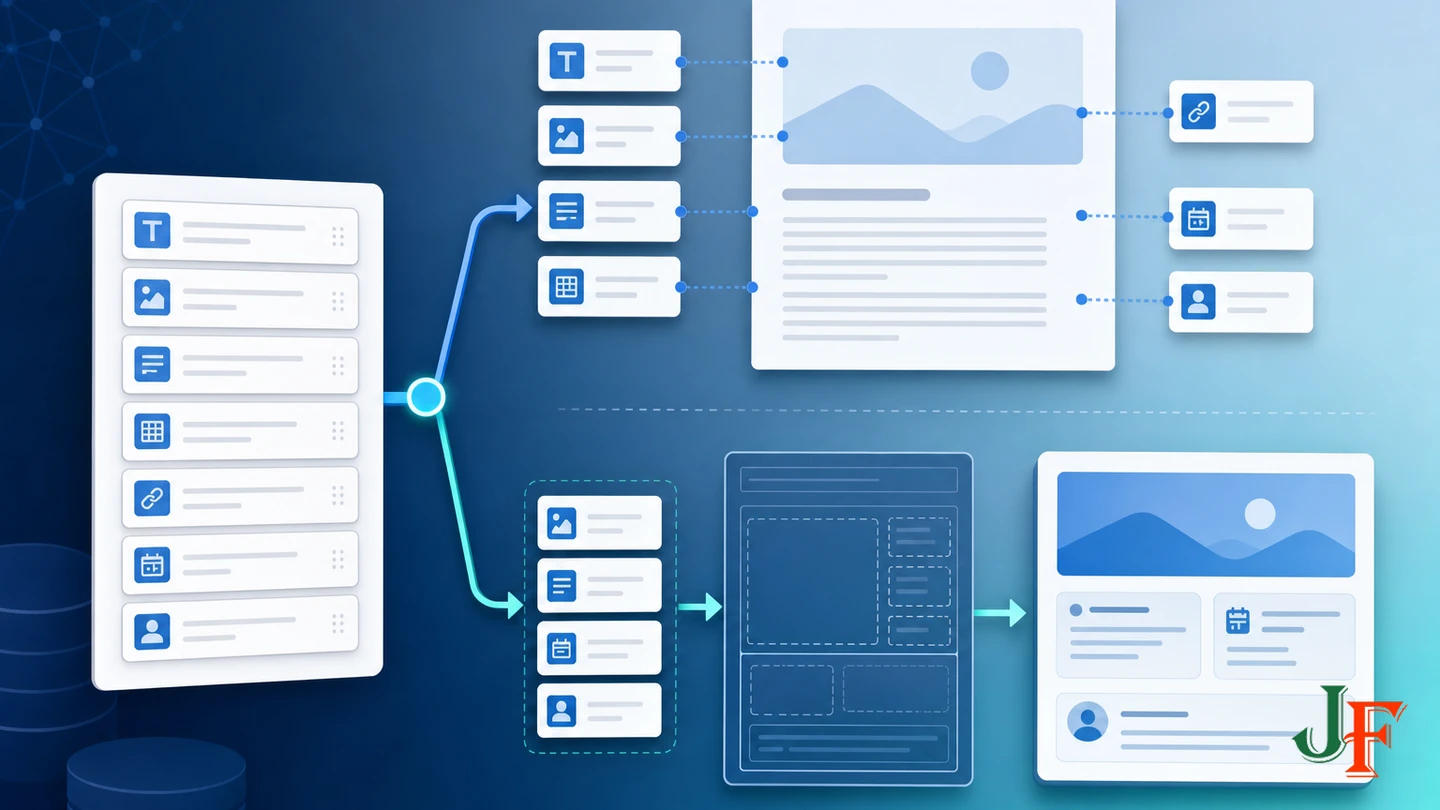
Option 1: use automatic output
Automatic output is appropriate when all fields in a group can appear together in a standard location. Joomla provides four choices: After Title, Before Display Content, After Display Content, and Do Not Automatically Display. The first three are supplied through the corresponding Joomla content events, as documented in the Content Events reference.
This is the simplest starting point. Configure one field, choose a position, and confirm that the active template and article layout trigger the expected content event.
Option 2: build a template override
Use an override when a score must sit beside a review heading, a download must appear in a resource panel, or staff attributes need a profile-card layout. Set each manually placed field to Do Not Automatically Display first; otherwise it may appear once in the override and again through automatic output.
Joomla makes item fields available through jcfields in supported layouts. The official Template Overrides: Custom Fields guide recommends rendering fields with FieldsHelper::render. An illustrative name-based pattern is:
<?php
use Joomla\Component\Fields\Administrator\Helper\FieldsHelper;

foreach ($this->item->jcfields as $field) {
    if ($field->name === 'review-score') {
        echo FieldsHelper::render(
            $field->context,
            'field.render',
            ['field' => $field]
        );
    }
}
?>
Adapt the example to the object and layout documented for the active template. Prefer the helper over manually printing a raw value because it retains Joomla’s field-rendering behavior. If an integration genuinely needs a raw value, apply context-appropriate escaping or sanitization rather than echoing untrusted data directly.
Create the override through the template override workflow and keep it in the active template’s customization area—or its child-template customization area when that setup is already supported and in use. Do not edit Joomla core layouts, and do not copy an entire parent template merely to place a few fields. An override is upgrade-safe relative to editing core, but it is not maintenance-free: retest it after Joomla and template updates.
Related guidance: create a Joomla template override.
Related guidance: use a Joomla child template for customizations.
Five practical content models
Review articles
Create a Reviews category and a Review Details group. Use a controlled List for product type, Textarea fields for pros, cons, and verdict, and a URL field for the product page. On Joomla 6, a Numbers field can store a score or price and optionally provide currency formatting. On Joomla 5.4, choose an available field type appropriate to the value and its validation rather than assuming the Joomla 6 Numbers field exists.
Use an override when the score, verdict, and links need a deliberate review layout. This structure improves consistency, but it does not automatically generate Review or Product Schema.org markup.
Downloadable resource libraries
On Joomla 6.1 or later, use the dedicated Document field for a Media Manager document. Its documented frontend behavior is a document download link. Pair it with ordinary fields such as version label, release date, license, summary, or file-purpose description.
Do not treat the Document field as a full download-management system. The supplied documentation does not establish download counts, expiring URLs, malware scanning, ecommerce delivery, or equivalent services. Joomla 5.4 does not have this dedicated Joomla 6.1 field; a URL can model a link, but it does not become the same native Document field.
Video articles
Joomla 6.1’s Video field selects a Media Manager file and renders a browser-native HTML5 video player. Documented options include controls, autoplay, loop, plays-inline, preload, and a poster image. Use options conservatively and test them with the site’s real template and target browsers. The companion Audio field produces native HTML5 audio output.
The documented workflow does not establish direct YouTube, Vimeo, or other remote-provider embedding. Joomla 5.4 also lacks these dedicated Joomla 6.1 media fields. A remote-video workflow therefore needs separately verified implementation guidance.
Staff profiles
Use either Contacts or Articles according to the site’s existing information architecture. Assign a Staff Profile group only to the staff category, with fields such as role, department, portrait, biography, expertise, office information, and a relevant URL. A contact or article override can then present the same attributes consistently across profile cards and detail pages.
Keep private employment or internal contact information out of public fields. Field-level access and article access must be designed together, especially if search indexing or web services are enabled.
Directories
Custom fields can structure one record per organization, service, location, or person. Categories, access levels, Smart Search, and template overrides can support navigation and consistent output. However, Smart Search keyword indexing is not the same as advanced faceted filtering by arbitrary combinations of field values. If users must filter simultaneously by location, service, price range, and other attributes, evaluate custom development or an extension against that precise requirement.
Smart Search, privacy, SEO, and accessibility

Privacy warning: Joomla warns that searchable custom-field content is indexed using the viewing permissions of the containing content item. A field with more restrictive access than its article can therefore disclose information unexpectedly through search. Do not enable Make Searchable for confidential or more-restricted values without testing results as representative public, registered, and privileged users. This warning is documented in Field Parameters.
Structured entry and search-engine structured data are separate concerns. Custom fields can keep a score, role, price, or media reference consistent, but the supplied research does not establish automatic mapping of arbitrary fields to valid Product, Review, Person, or VideoObject Schema.org markup. Implement and validate any Schema.org output separately. Likewise, using custom fields does not guarantee higher search rankings.
Accessibility also requires publishing decisions beyond selecting a field type. As recommended practices, provide captions or transcripts where appropriate, write meaningful document-link text, display a rating with a visible label rather than relying only on decoration, and test media controls and custom layouts with a keyboard. Treat these as items to verify against dedicated accessibility guidance and the site’s actual output.
Apply normal secure-media practices as well: permit uploads only for appropriate users, review what is publicly exposed, and test access from the frontend rather than relying solely on administrator-form settings.
Maintenance, security, and version history
Keep the field inventory documented: category, group, label, machine name, type, required state, access, language, search setting, and output location. When changing a label or presentation, check every override or integration that references the stable field name.
Version restoration needs special caution. The official Joomla 6 feature site advertises extended versioning that includes custom fields, tags, and categories. However, the current Article: Versions guide still states that custom fields are not stored in different versions. Treat this as conflicting official documentation, not proof of universal behavior in either direction. Test restoration on the exact Joomla release and field types in use, especially subforms and Joomla 6.1 media fields.
Security patches matter independently of field configuration. Joomla 6.1.3 and 5.4.8 fixed improper ACL checks affecting custom-fields web-service endpoints, according to the official release announcement. Run those versions or later supported security patches, and test API access when web services are part of the site. Configuring a field’s access level is not a substitute for installing the security fix.
Common mistakes and troubleshooting

- The field tab is missing: select and save the intended article category, verify that the field and group are published, and confirm that the field uses the Article rather than Category context.
- The field is missing from an uncategorised article: remember that the All category assignment does not include uncategorised articles.
- Some editors cannot see the field: compare the field group, field, article, category, access level, language, and editing scope.
- The value saves but does not appear: confirm that the field contains a value, inspect Automatic Display, and verify that the active layout triggers the relevant content event.
- The field appears twice: disable automatic display when the same field is rendered manually in an override.
- The wrong input control was chosen: a saved field’s type cannot be changed. Create and test a replacement field, migrate data carefully, update references, and retire the old field only after verification.
- An override stopped working: check whether the active template, layout object, or expected field name changed, then retest with the current Joomla and template versions.
- A restricted value appears in search: disable field indexing as an immediate precaution and test effective Smart Search visibility with representative access levels.
When core fields are enough—and when to evaluate an extension
Core Joomla custom fields are a strong fit when the requirement is consistent data entry, category-specific forms, ordinary access and language controls, standard automatic output, or a maintainable custom layout. They are especially useful when the team already manages Articles or Contacts and needs predictable attributes without introducing another content system.
Evaluate custom development or an extension when the verified requirements include unsupported field types, complex relationships, advanced faceted filtering, remote-video services, download analytics or protected delivery, specialized Schema.org output, or workflows not demonstrated by Joomla core. Compare products against those requirements and confirm compatibility with the exact Joomla release; do not assume every third-party component supports core fields.
Concise FAQ
Do Joomla custom fields require an extension?
No. Article, Contact, and User custom fields are core functionality. An extension may be appropriate only for requirements that the tested core workflow does not meet.
Can I change a field type later?
No. Joomla documents the type as permanent after the field is saved. Test the type before production entry and use a stable machine name.
Why does a field appear only after selecting a category?
Category-specific fields are loaded for their assigned context. Select the intended category first, and remember that All does not include uncategorised articles.
Can custom fields be searchable?
Yes, but do not index confidential or more-restricted values without testing. Indexed field content uses the viewing permissions of the containing content item.
Does Joomla 5.4 include the dedicated Video and Document fields?
No. Audio, Video, and Document are Joomla 6.1-or-later additions. Joomla 5.4 remains supported but does not have those native field options.
Are template overrides maintenance-free?
No. They are safer than modifying Joomla core files, but they must be retested after Joomla or template updates.

Add comment