
Adding Joomla custom CSS correctly means placing your rules in the customization location provided by the active template, rather than changing Joomla core files or supplied template stylesheets. For a site using Cassiopeia, the documented starting point is a file named user.css. Direct changes to files such as template.css or template.min.css can disappear when Joomla updates the supplied template files.
This tutorial explains the Cassiopeia workflow for supported Joomla 6.1 and Joomla 5.4 installations. You will learn how the customization layers fit together, create user.css in the Administrator, add a small scoped rule, inspect selectors with browser developer tools, diagnose cascade and cache problems, and decide when a child template is more appropriate.
Important: user.css is Cassiopeia-specific guidance, not a universal filename or path for every Joomla template. If you use a third-party template or framework, follow its current vendor documentation instead.
Understand the inheritance model before editing anything
Before following the practical steps, it helps to understand what Joomla's different customization mechanisms actually do. They solve different problems and should not be treated as interchangeable.
A Joomla child template has a parent-and-child relationship. The child inherits a file from its parent unless the child supplies a corresponding file. When both contain a file at the same relative path, the child's file is used instead of the parent's file. The two files are not automatically merged line by line. This inheritance model has been available for compatible templates since Joomla 4.1 and includes Cassiopeia. Child files are isolated from replacement in the same way as parent-supplied files, but that does not make them maintenance-free. Parent markup, styles, and behavior can still change during updates. See the official Child Templates documentation.
| Mechanism | What it is for | Important limitation |
|---|---|---|
user.css | A user-created Cassiopeia stylesheet containing visual additions and overrides. | It is suitable for focused CSS work, but it does not provide PHP or layout-file customization. Its filename is not universal across templates. |
| Template style | An Administrator configuration and assignment based on an installed template. Different styles can be assigned to different menu items. | A template style is not a CSS file, template override, child template, or complete copy of the template. |
| Template override | A supported method for replacing an extension or template layout output without directly modifying the supplied source file. | An override can require review after the original layout changes. It is different from a CSS rule. See Joomla's Template Overrides documentation. |
| Child template | An inherited design variant that can contain CSS, template files, layout or PHP changes, and other broader customizations. | The parent must remain installed and should continue to be updated. Same-path child files replace the inherited parent files rather than merging with them. |
| Complete parent-template copy | A separate duplicate of the original template rather than a small inherited layer. | It creates a larger maintenance burden because duplicated files do not automatically inherit later parent improvements. Beginners should not copy the entire Cassiopeia template merely to add CSS. |
For standard Cassiopeia sites that need focused visual changes, begin with user.css. Consider a child template when you need an independent design variant, additional template files, layout or PHP overrides, extra module positions, or broader structural work. This is maintainability guidance, not a rule based on a particular number of CSS lines.
Related guidance: Joomla template overrides explained.
Supported Joomla versions for this tutorial
As of 20 August 2026, the official Joomla sources identify Joomla 6.1.3 and Joomla 5.4.8 as the current supported releases; both were released on 18 August 2026 as security and bugfix releases. Joomla 5.4 has regular bugfix support scheduled through 13 October 2026 and security support through 12 October 2027. Joomla 6 has regular bugfix support scheduled through 17 October 2028 and security-only support through 16 October 2029. These time-sensitive details should be checked immediately before publication against the official Joomla roadmap and the Joomla 6.1.3 and 5.4.8 release announcement.
Cassiopeia documentation written during the Joomla 4 era remains useful because Cassiopeia applies to Joomla 4 and higher, but Joomla 4 is not listed as a currently supported major series in the supplied roadmap. This tutorial therefore leads with Joomla 6.1 and Joomla 5.4.
For broader version-migration planning, prepare for a Joomla 5 to Joomla 6 upgrade separately from child-template maintenance.
Before you add Joomla custom CSS
- Confirm the active template on the exact page. A site can have different template styles assigned to menu items. Do not assume that the site's default style is used on every page.
- Use an appropriate test environment. A current backup and a staging or test site are recommended before design changes. These precautions are good maintenance practices, not automatic benefits provided by CSS or child templates.
- Make one small change at a time. Save, reload, and test after each logical block so that a problem is easy to identify and reverse.
- Make sure you have authorized access. You need access to Site Templates and the server must permit the file to be written. Joomla ACLs can be customized, so no single built-in user group should be assumed to work on every site.
back up Joomla before editing or use a staging copy before editing the production design.
The correct Cassiopeia location for Joomla custom CSS
For Cassiopeia on Joomla 4.1 and higher, the current physical location is:
media/templates/site/cassiopeia/css/user.cssThis path is specific to Cassiopeia and must not be presented as the location for every template. A fresh Cassiopeia installation does not normally include user.css; you create it when needed. Joomla then uses it for additions and overrides to styles supplied by the template or extensions. The path and purpose are documented in Cassiopeia Customisation and Cassiopeia Template Folders and Files.
For additional layout and styling ideas, see how to complete Cassiopeia template tutorial without editing supplied files directly.
Step by step: create user.css in the Joomla Administrator
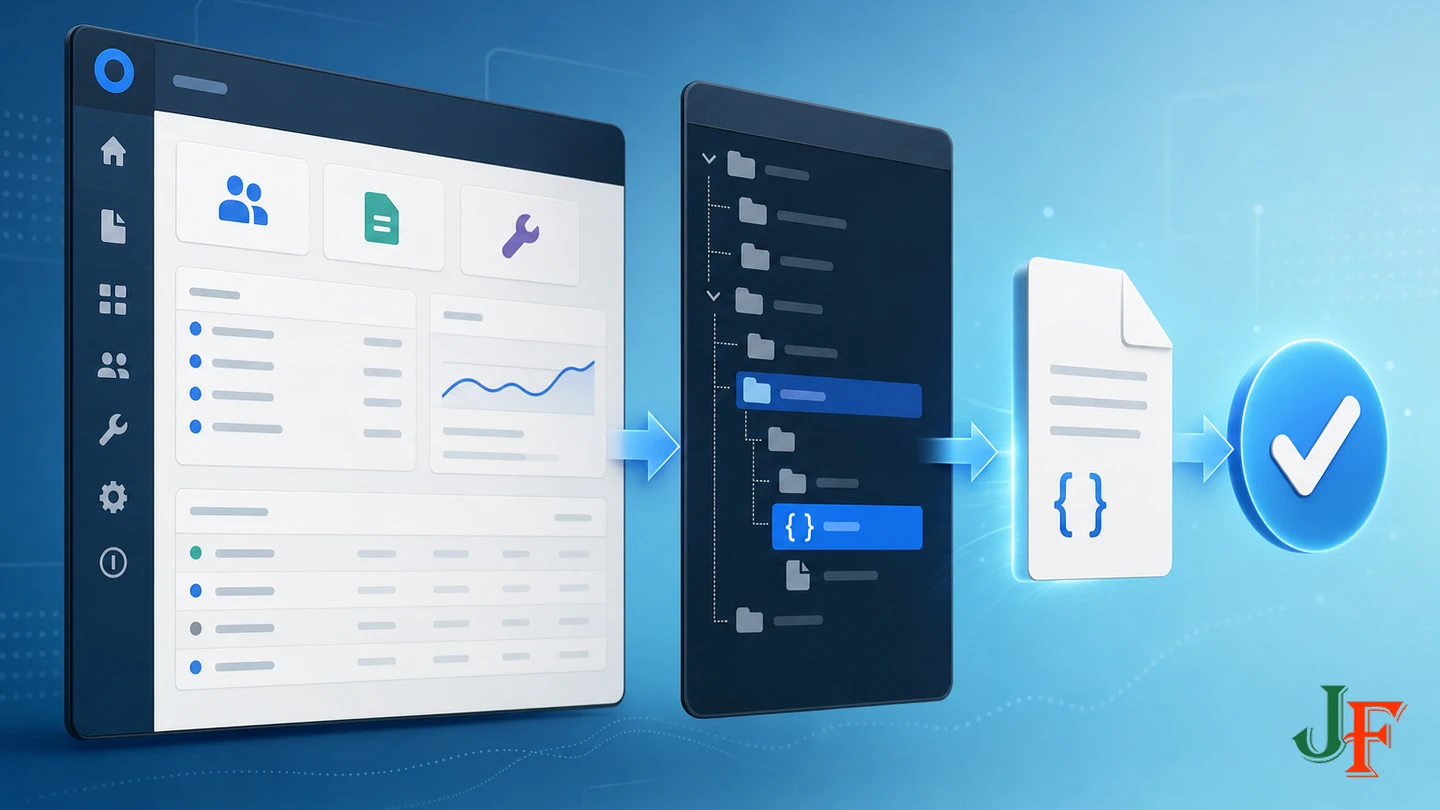
The documented workflow is as follows. Interface wording can vary by Joomla version or language, so check the labels on your installation before creating screenshots.
- Sign in to the Joomla Administrator.
- Go to System.
- Open Site Templates.
- Select Cassiopeia Details and Files. Make sure you are opening the template associated with the page you intend to customize.
- Select New File.
- Choose the css folder.
- Enter
userin the filename field. Do not type the extension in this field. - Select
.cssseparately as the file type. - Create the file, add your CSS, and save it.
That exact distinction—entering user as the name and selecting .css separately—is part of Joomla's documented Cassiopeia file-creation workflow.
Optional hosting or SFTP method
If you are authorized to manage the site's files, you can create or upload a plain-text file named user.css through a hosting file manager or SFTP. For Cassiopeia on Joomla 4.1 and higher, place it at media/templates/site/cassiopeia/css/user.css. Verify the spelling, lowercase filename, extension, and directory carefully. Do not use this Cassiopeia path for a different active template.
Related guidance: use the Joomla template editor.
Start with one small, scoped CSS customization
A narrow selector is less likely to change unrelated parts of the site. Joomla modules that expose a Module Class field can provide a stable class for this purpose, as described in the official Cassiopeia file documentation.
- Edit a module that you can safely use for testing.
- Open its Advanced settings and add
tutorial-calloutto the Module Class field. - Add the following rule to
user.css:
/* Scoped callout for the module class tutorial-callout */
.tutorial-callout {
  border-inline-start: 0.35rem solid #245c7c;
  background-color: #f2f7fa;
  color: #17242d;
  padding: 1rem;
}
Save the file and reload the page containing that module. This is safer than starting with a broad selector such as div, which could affect many unrelated elements. The example is deliberately small and reversible; its colors, spacing, contrast, and behavior still need testing on your site.
Find the right selector with browser developer tools
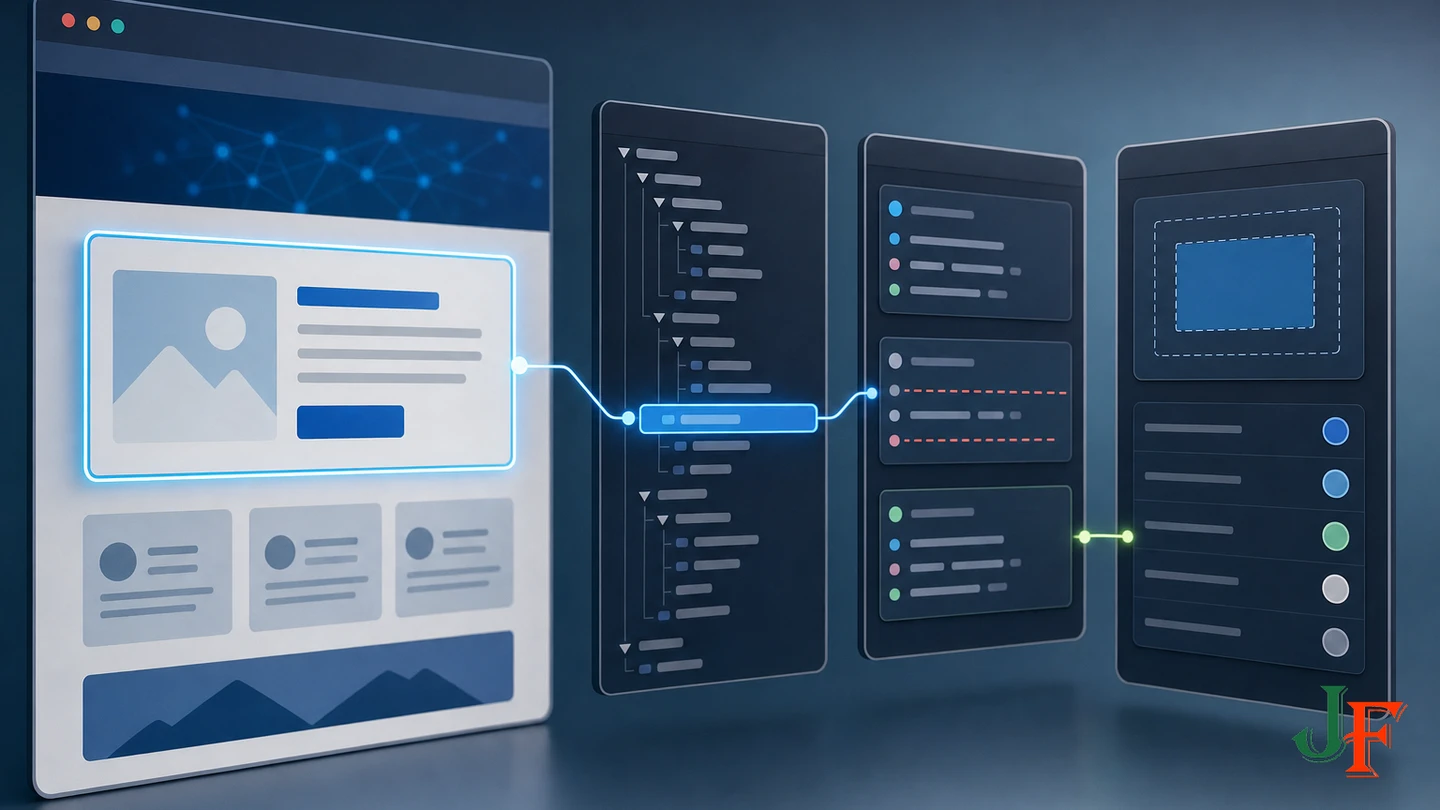
Do not guess the selector for an existing header, button, article, or extension. Browser developer tools can show the live DOM, matching rules, overridden declarations, source stylesheet and line numbers, specificity order, computed values, and temporary live edits. These capabilities are explained in the MDN introduction to browser developer tools.
- Open the front-end page where the change is needed.
- Right-click the element and choose the browser's inspection command.
- Confirm that the selected DOM element is the one you intend to style.
- Review the Styles or Rules panel. Note which selectors match and which declarations are crossed out.
- Look at the source filename. Confirm that
user.cssis requested and appears among the applicable resources. - Use the Computed panel to identify the final value used by the browser.
- Test a temporary declaration in the developer tools before copying the successful, narrowly scoped rule into
user.css.
DOM structure, Cassiopeia selectors, and custom properties can change between releases. Reinspect the live page after Joomla or template updates rather than assuming that a selector will remain valid forever.
Practical CSS patterns
Header color using a selector you have verified
Inspect the live header first, then replace the placeholder selector below with the class or other narrow selector confirmed on your installation:
/* Replace this placeholder with the selector verified in developer tools */
.your-confirmed-header-selector {
  background-color: #243447;
  color: #ffffff;
}
Do not paste a version-specific Cassiopeia selector from an old tutorial without checking it. Also inspect links, icons, buttons, hover states, and focus states inside the header; changing the container color does not guarantee that every nested item remains readable.
Module callout with a hover or focus-within state
.tutorial-callout:hover,
.tutorial-callout:focus-within {
  border-inline-start-color: #b24a00;
}
The :focus-within state helps the component respond when a keyboard user moves focus to a control inside it. Test the result with a keyboard rather than relying only on mouse hover.
Responsive image inside a class you control
.article-figure img {
  display: block;
  max-width: 100%;
  height: auto;
}
Use this only where you have deliberately placed the article-figure class. Scoping the rule avoids applying dimensions indiscriminately to logos, icons, or extension-generated images.
Visible keyboard focus
a:focus-visible,
button:focus-visible,
input:focus-visible,
select:focus-visible,
textarea:focus-visible {
  outline: 3px solid #b24a00;
  outline-offset: 3px;
}
This example must be tested against every background on which those controls appear. Do not remove an existing focus indicator unless you provide a clearly visible replacement.
How to scope CSS to one page
Page-specific styling is possible only when the rendered page provides a suitable class or attribute. Some site configurations or templates expose a page or menu-item class, but the supplied research does not establish one universal field or generated class for every Joomla site. If your active template provides such a mechanism, confirm the resulting class in the live DOM and prefix your selector with it:
/* Use only after confirming this page class in the live DOM */
.your-confirmed-page-class .tutorial-callout {
  border-inline-start-width: 0.5rem;
}
If you cannot confirm a reliable page class, do not invent one. For module-specific styling, the documented Module Class method is the better-supported narrow-scoping example.
Understand the cascade, specificity, and !important
A rule in user.css does not win merely because you wrote it. CSS results can depend on cascade origin, importance, cascade layers, specificity, scoping proximity, and source order. An extension may also load a competing stylesheet later. The MDN specificity guide explains these factors.
Before adding !important:
- Confirm that your selector matches the live element.
- Check whether the declaration is invalid or crossed out.
- Identify the winning selector and its source file.
- Check for inline styles, layers, higher specificity, and later-loaded extension rules.
- Prefer a deliberate, narrowly scoped selector or appropriate source-order solution.
!important is not always wrong and may occasionally be genuinely required, but use it sparingly and comment why it was needed. Routine use makes future overrides and maintenance more difficult.
When user.css is enough and when to use a child template
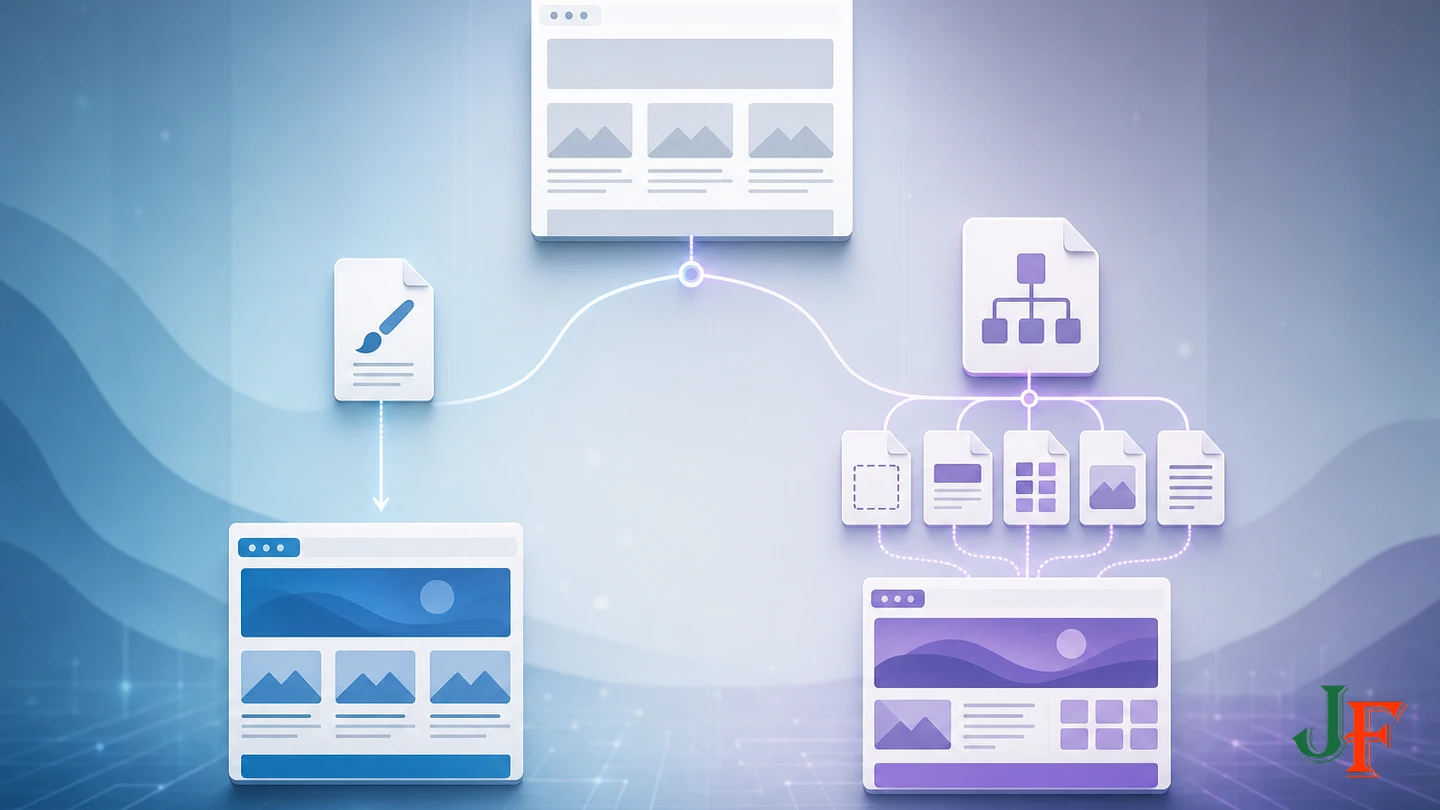
Use Cassiopeia's user.css when the standard template structure is suitable and your work consists mainly of focused visual overrides. Move toward a child template when you need a separate design variant, template or PHP files, layout overrides, additional positions, or a broader customization layer. Joomla documents both the Cassiopeia CSS approach and child-template inheritance.
A child template is safer than directly changing parent-supplied files, but it is not maintenance-free. If a child supplies a same-path file, that whole child file replaces the inherited parent file; Joomla does not merge later parent changes into it. Review selectors, layouts, inherited behavior, and overrides after Joomla or parent-template updates.
The parent template must remain installed and updated because the child continues to inherit the files it does not provide. After creating a child template using Joomla's documented feature, use its associated template style and assign it to a test menu item first. Verify the design on that controlled page before considering it for the site's default style.
Related guidance: how to create a Joomla child template.
Why editing template.css or generated files is risky
Joomla's documentation distinguishes user-created customization files from supplied Cassiopeia files that should not be edited. A Joomla update may replace supplied files and erase direct modifications. This update risk is documented in Joomla's Template Overrides guide.
Avoid direct edits to template.css, template.min.css, compressed files, compiled files, or generated framework output. Apart from being difficult to read and maintain, generated files may be rebuilt by their template framework even when no Joomla core update occurs.
user.cssis Joomla's documented customization location for Cassiopeia and is safer than modifying supplied template files. It should not, however, be described as impossible to delete or lose: deployments, restores, hosting operations, or third-party tools remain outside that guarantee.
Third-party templates: user.css is not universal
Do not assume that a third-party template automatically loads Cassiopeia's user.css. A vendor may provide a Custom CSS field, custom.css, SCSS compilation, a child mechanism, or another workflow. For example, current Helix Ultimate documentation recommends its Custom CSS field or custom.css and warns against editing generated template stylesheets.
That Helix example demonstrates template-specific variation; it does not establish the workflow for every other framework. Consult the current documentation for the exact template and version installed on your site.
Troubleshooting when Joomla custom CSS does not appear
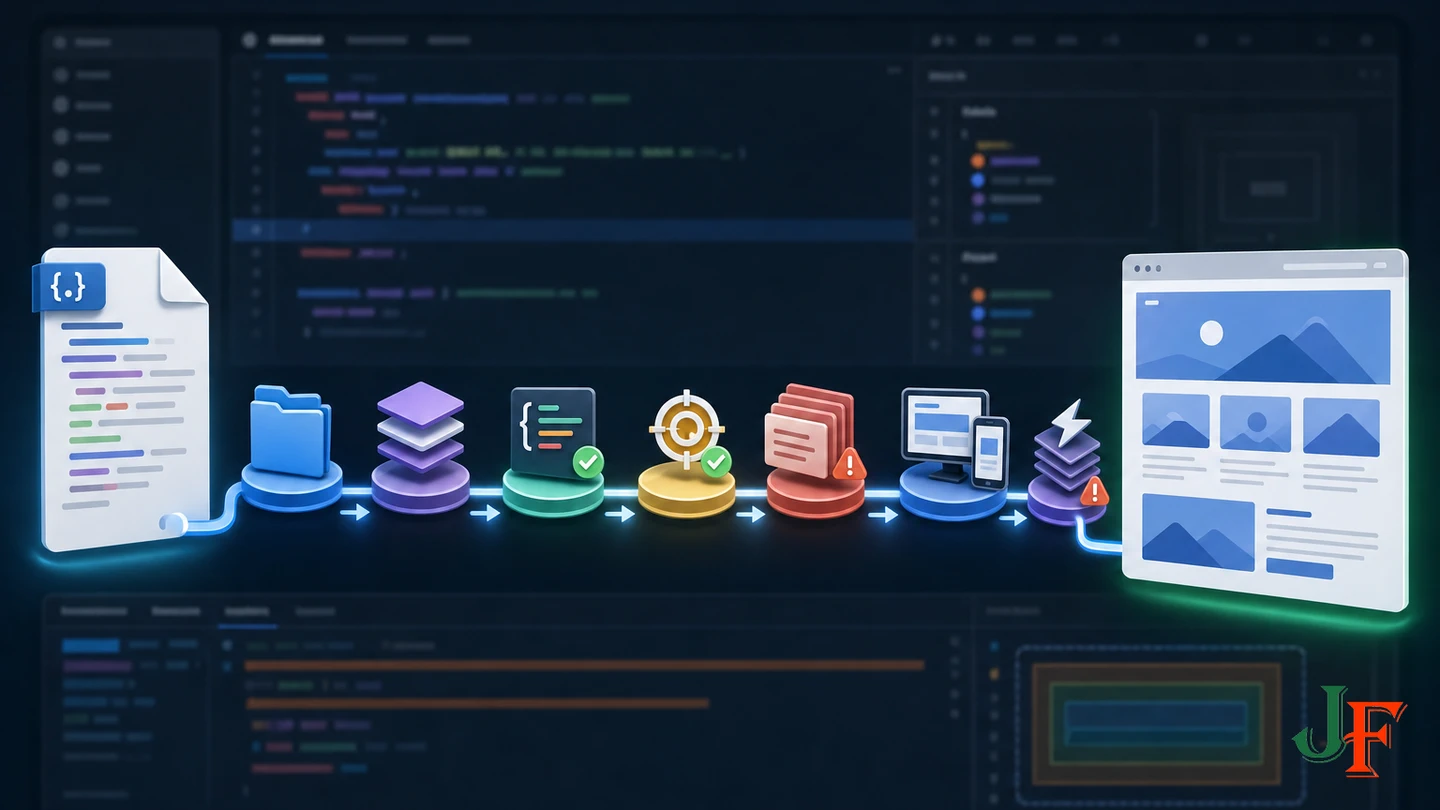
Start with browser developer tools rather than immediately adding a stronger selector or !important.
| Symptom or cause | What to check |
|---|---|
| Wrong file or folder | For current Cassiopeia installations, confirm media/templates/site/cassiopeia/css/user.css. Check lowercase spelling and the single .css extension. |
| Inactive template | Confirm which template style is assigned to the current menu item. Editing Cassiopeia will not affect a page rendered by another template. |
user.css is not requested | Use the browser Network or Sources tools to confirm that the file is loaded. Recheck the active template and path. |
| Malformed CSS | Look for missing braces, invalid property names, incomplete comments, or an earlier syntax error that disrupts later rules. |
| Selector mismatch | Inspect the live element. The rendered class or structure may differ from what you expected. |
| Rule is crossed out | Identify the winning declaration and compare importance, layers, specificity, scoping, and source order. |
| Extension style loads later | Use a suitably scoped selector and inspect load order. Avoid escalating specificity without understanding the competing rule. |
| Change appears only on some pages | Check menu-item template-style assignments, page markup differences, and whether the target module is actually present. |
| Desktop works but mobile breaks | Test narrow widths, wrapping, reflow, images, menus, long text, and touch-sized controls. Remove rigid widths that cause overflow. |
Cache checklist
An old stylesheet can remain in one or more cache layers. A single purge is not guaranteed to solve every stale-CSS problem.
- Save
user.cssand confirm the saved content. - Perform a forced browser reload.
- Check whether the browser still reports an older response in its Network tools.
- If relevant, clear Joomla cache groups through System → Clear Cache, as described in Joomla's Cache documentation.
- Purge any CDN, reverse-proxy, hosting, or server cache that is active.
- If using a framework, clear or rebuild its generated assets according to current vendor instructions.
For developer-built extensions and custom templates, Joomla's Web Asset Manager is the supported developer-level architecture for registering and rendering assets, handling dependencies, and supplying version information that helps browsers request changed files. That architecture is separate from the basic Cassiopeia user.css workflow and should be used for distributable extension or custom-template assets rather than injecting arbitrary stylesheet tags.
Accessibility and responsive checks
Custom colors and layout rules can reduce accessibility even when the CSS is technically valid. WCAG 2.2 Level AA requires contrast of at least 4.5:1 for normal text and 3:1 for large text, subject to the standard's documented exceptions. WCAG also addresses use of color, text resizing, reflow, focus appearance, and non-text contrast. Consult the normative Web Content Accessibility Guidelines 2.2.
After each styling change, test:
- Text, link, control, icon, and boundary contrast.
- Visible keyboard focus throughout menus, forms, links, and controls.
- Hover and focus states, without relying on color alone to convey meaning.
- Browser zoom, high zoom, and text resized to 200%.
- Responsive reflow without horizontal scrolling caused by the customization.
- Mobile layouts, long headings, narrow screens, and content wrapping.
- Images, tables, forms, navigation, and extension output on representative pages.
Accessibility and responsive testing are recommended verification steps. They are not automatic benefits of using user.css or a child template.
Maintainability and rollback
As your Joomla template CSS grows, group related rules and add concise comments explaining their purpose. Avoid copying large blocks from the parent stylesheet. Prefer a narrow rule that changes only the necessary declaration.
/* Module callouts */
.tutorial-callout {
  padding: 1rem;
}

/* Keyboard focus: retained for site-wide visibility */
a:focus-visible {
  outline-offset: 3px;
}
To roll back a broken change, remove or comment out the most recent rule, save, force reload, and inspect the result. If the template editor is unavailable, an authorized administrator can edit or temporarily rename the custom file through the hosting file manager or SFTP. Keeping a backup, testing on staging, and changing one block at a time makes rollback easier, but these remain recommended practices rather than guarantees.
Frequently asked questions
Does user.css already exist on a new Cassiopeia site?
Usually not. Create it when needed through Cassiopeia Details and Files or, with authorized file access, at the documented Cassiopeia path.
Does this method work with Joomla 6?
Yes for Cassiopeia. The current manual describes Cassiopeia and its user.css mechanism for Joomla 4 and higher, while this tutorial focuses on supported Joomla 6.1 and Joomla 5.4 installations.
Do I need a Joomla extension to add CSS?
No extension is required for Cassiopeia because the Joomla template editor can create user.css. Separate custom-code management tools are optional and are not part of this basic workflow.
Should I use user.css or a child template?
Use user.css for focused CSS overrides where standard Cassiopeia structure is sufficient. Consider a child template for independent variants, layout or PHP overrides, additional template files, or broader structural customization. Continue reviewing the child after parent updates.
Why is my rule not working even though user.css loads?
The selector may not match, the declaration may be invalid, or another rule may win through the cascade. Inspect the live element, matching rules, source order, specificity, and computed value before changing the selector.
Can custom CSS affect only one module?
Yes, where the module exposes a Module Class field. Add a unique class, confirm it in the live DOM, and target that class in user.css.
Will custom CSS improve search rankings?
No direct SEO-ranking claim is supported here. Treat CSS as presentation code and test that it does not create unreadable content, hidden information, broken mobile layouts, or accessibility problems.
Sources
- Cassiopeia Customisation — Joomla! Project User Manual
- Child Templates — Joomla! Project User Manual
- Template Overrides — Joomla! Project User Manual
- Joomla! Project Roadmap — Joomla! Project Developer Network
- Joomla 6.1.3 & 5.4.8 Security & Bugfix Release — Joomla! Project
- J4.x:Cassiopeia Template Folders and Files — Joomla! Documentation
- Web Asset Manager — Joomla! Programmers Documentation
- Cache — Joomla! Project User Manual
- Web Content Accessibility Guidelines (WCAG) 2.2 — World Wide Web Consortium
- What are browser developer tools? — MDN Web Docs
- Specificity - CSS — MDN Web Docs
- Custom Code (CSS / JS / Meta) — Helix Ultimate Documentation

Add comment