
A Joomla staging site gives agencies, developers, and serious site owners a safer place to test a core update before changing the public website. By restoring a representative copy of the live files and database into an isolated environment, you can find extension conflicts, layout regressions, database problems, login failures, and recovery issues while production remains unchanged.
This process can reduce production downtime because investigation, corrective work, timing, and rollback rehearsal happen before the maintenance window. It does not guarantee a trouble-free deployment: staging may differ from production, compatibility data can be incomplete, and live content may change after the clone is created. The objective is therefore controlled risk reduction. This tutorial covers routine updates for Joomla 6.1.x and 5.4.x, then provides a separate procedure for a Joomla 5.4-to-6.x major upgrade. Release statements are current as of August 9, 2026.
What a Joomla staging site is—and what it is not
A Joomla staging site is an isolated working copy of the production website. For useful update testing, the copy should include the site's files, database, extensions, template, template overrides, configuration, and representative content. It should resemble the production environment as closely as practical while using its own database and credentials.
Never connect a staging file tree to the production database. Tests could otherwise change live users, content, sessions, orders, or extension data. Joomla's restoration guidance supports using a clean filesystem and an empty or newly created database for a restored site (Joomla Backup guide).
Staging is not the same as a backup. A backup is the recovery asset; staging is the environment in which a restored copy and the proposed update are tested. Staging also differs from a general Joomla development site that may contain experimental code or data unlike production. Most importantly, a successful staging result does not replace the fresh production backup required immediately before deployment.
Why a Joomla staging site reduces downtime
Official Joomla major-upgrade guidance recommends restoring production to a subdomain or local installation and completing a trial run before upgrading the live website (Joomla 5 to 6 Planning and Upgrade Step by Step). This is specifically major-upgrade guidance, but the underlying workflow is also a sensible risk-control practice for important patch and minor updates.
Staging moves compatibility investigation, troubleshooting, timing, and recovery rehearsal away from visitors. The team can document the required extension actions and estimate the production window before the public site is touched. This can reduce downtime because less diagnosis is left for the live maintenance window, but it is an operational benefit rather than a zero-downtime guarantee. Joomla's update and backup guidance also makes clear that reaching the end of an update is not sufficient: frontend, administrator, database, extension-discovery, and log checks still matter (Version Update).
Supported Joomla versions and update paths
As of August 9, 2026, Joomla 6.1.2 and Joomla 5.4.7 are the current stable releases. Joomla 5 is in bugfix mode, with regular bugfix support scheduled to end on October 13, 2026 and security-only support scheduled to end on October 12, 2027. Joomla 6 regular bugfix support is scheduled through October 17, 2028, followed by security-only support through October 16, 2029 (Joomla! Project Roadmap; Joomla 6.1.2 & 5.4.7 release announcement).
- Routine update: a patch or minor update that remains within the Joomla 5.4.x or 6.1.x line.
- Major upgrade: Joomla 5.4.x to Joomla 6.x. This has different server, extension, compatibility-plugin, and update-channel requirements and must be planned separately.
- Older branches: treat Joomla 4.4 and earlier installations as migration starting points rather than maintained targets for this routine-update workflow.
Plan the staging environment
You can use a provider-created clone, a protected subdomain, a separate hosting account, or a local environment. Joomla's major-upgrade guide explicitly supports subdomain and local test approaches. Hosting tools vary, so do not assume a one-click clone automatically isolates email, scheduled tasks, payments, analytics, webhooks, or indexing.
Before starting, obtain administrator access, database and filesystem access, hosting configuration details, HTTPS for staging, extension vendor information, and control over external integrations. Record the current Joomla version, PHP version, database engine and version, web server, active template, overrides, enabled extensions, scheduled jobs, caching, and relevant CDN or proxy behavior.
Step 1: Create and prove a complete backup

- Back up the entire Joomla filesystem.
- Back up the complete Joomla database.
- Store the recovery material somewhere that will not be affected by a server failure or update attempt.
- Record the backup date, production version, database details, and restoration procedure.
- Restore the backup into a clean location and newly created or empty database, then confirm that the restored site works.
A complete Joomla recovery backup must account for both files and database. Joomla also warns against relying solely on hosting-provider snapshots and recommends checking the restored result (Backup). A backup that has never been restored is an unproven recovery plan.
create a complete Joomla backup or use a staging copy before editing the production design.
Step 2: Restore production into an isolated location
- Create a dedicated staging directory, subdomain, account, or local host.
- Create a separate, empty database and a dedicated database user.
- Restore the production files and database using your documented restoration method.
- Update environment-specific database credentials, URLs, temporary paths, log paths, session settings, and cache paths where required.
- Open both the frontend and administrator area and confirm that the restored baseline behaves like production.
If you restore with Akeeba's Backup Restoration Script, its documentation covers resetting environment-specific paths, cache and session settings, the restored URL, HTTPS settings, and other clone details (Akeeba Backup Restoration Script: Site Setup Page). Equivalent controls may appear elsewhere when another cloning method is used.
restore the backup into a clean location or use a staging copy before editing the production design.
restore a Joomla backup with Akeeba or use a staging copy before editing the production design.
Step 3: Secure staging and stop real-world side effects

- Restrict access: prefer password authentication, network controls, or another appropriate access restriction. Use HTTPS and grant access only to people who need it.
- Control indexing: use a robots meta
noindexdirective or anX-Robots-Tagheader if the site remains publicly reachable. A noindex directive must be crawlable so the search engine can observe it (Google's noindex documentation). - Do not rely on robots.txt for privacy: Google explains that a robots.txt-disallowed URL can still appear in search results. Password protection or noindex is preferred when staging must not appear in Google Search (Introduction to robots.txt).
- Suppress customer email: Akeeba specifically recommends disabling Joomla mail sending on a production copy restored for development or staging. Alternatively, route mail to a safe capture service using controls appropriate to your environment.
- Inventory outbound effects: identify payments, SMS, CRM synchronization, webhooks, scheduled tasks, analytics, CDN purges, APIs, and similar services. Disable, redirect, or sandbox them with extension- or provider-specific controls.
- Protect sensitive data: minimize or anonymize copied personal data where feasible. Applicable obligations depend on the website and jurisdiction, so use authentication, least-privilege access, and site-specific privacy advice.
Akeeba also generally recommends considering a new Joomla secret when a clone moves to another server, domain, subdomain, or directory. This is not a universal step: changing the secret can invalidate encrypted information maintained by third-party extensions. If it is changed, test MFA and encrypted extension data carefully (Akeeba restoration guidance).
Step 4: Match the environment and target requirements
A meaningful test should reproduce production's PHP, database, web server, Joomla configuration, extensions, template, overrides, cache behavior, and relevant integrations as closely as practical. It must also satisfy the target Joomla release's requirements.
| Target | Current documented thresholds |
|---|---|
| Joomla 6.x | Supported thresholds include PHP 8.3.0, MySQL 8.0.13, MariaDB 10.6, PostgreSQL 14.0, Apache 2.4, Nginx 1.26, and IIS 10. PHP 8.4 and at least 256 MB PHP memory are recommended. |
| Joomla 5.x | Minimums include PHP 8.1.0, MySQL 8.0.13, MariaDB 10.4.0, PostgreSQL 12.0, Apache 2.4, Nginx 1.21, and IIS 10. PHP 8.3 is recommended. |
See the official Joomla 6 technical requirements and Joomla 5.4 technical requirements. For Joomla 5.4-to-6.x, prepare staging for the Joomla 6 supported thresholds rather than assuming a server suitable for Joomla 5 is automatically suitable for Joomla 6.
Before planning an upgrade or changing server software, check Joomla technical requirements for PHP, database, extension, staging, and rollback considerations.
Step 5: Inventory extensions and record a baseline
- List all components, modules, plugins, templates, libraries, packages, and overrides, including disabled items.
- Check each third-party vendor's compatibility and update guidance for the target Joomla and PHP versions.
- Update or replace extensions in the order required by their vendors.
- Exercise the important workflow of each extension; an installed extension is not necessarily a working extension.
- Record baseline screenshots, page output, browser-console results, logs, and known pre-existing problems.
- Create a checkpoint backup of the working staging baseline before applying the core update.
The Joomla Pre-Update Check is useful, but its extension results depend on metadata supplied by extension developers. A green result is not proof of compatibility; Joomla's major-upgrade guidance still requires direct vendor review and testing of every third-party extension (Joomla 5-to-6 guide).
Related guidance: understand the Joomla Pre-Update Check.
Test a routine patch or minor Joomla update
- Confirm that the baseline checkpoint and original recovery backup are available.
- Open the Joomla Update component and confirm the intended version and routine update channel.
- Review the Pre-Update Check when it is available. The supplied Joomla 4 and 5 documentation says it appears for major and minor changes but not patch updates; it must not be treated as a compatibility guarantee (Version Update).
- Apply the update without making unrelated changes at the same time.
- Record start and finish times, warnings, errors, and any manual action.
- Do not approve production merely because the progress indicator completed. Run the functional and technical checks below.
Patch updates deserve staging on business-critical, highly customized, commerce, membership, multilingual, or agency-managed websites. The absence of a patch-level Pre-Update Check makes representative testing particularly valuable.
Related guidance: use the Joomla Update component.
Special procedure: test Joomla 5.4-to-6.x separately
This is a major-version upgrade, not a routine update. The documented direct starting branch is Joomla 5.4.x; earlier Joomla 5 installations should first reach 5.4.x (official Joomla 5-to-6 procedure).
- Restore and secure a fresh production copy, then confirm that its backup can be restored.
- Configure staging to meet the Joomla 6 target requirements, including supported PHP and database thresholds.
- Check every third-party extension and template directly with its vendor. Remove, replace, disable, or update incompatible items as appropriate.
- Run the available Pre-Update Check, investigate every warning, and still test extensions directly.
- Follow the official compatibility-plugin instructions: the Joomla 5 backward-compatibility plugin without a version number must be disabled before upgrading. The separate Backward Compatibility 6 plugin may support certain Joomla 5 extensions after the upgrade, but it does not make every extension compatible.
- Use the major-upgrade channel prescribed by the official guide, including Joomla Next where directed for this staged 5-to-6 trial. Do not apply this channel change to routine patch or minor updates.
- Run the upgrade, record every action, and complete the full test matrix. Repeat the trial from a clean checkpoint if corrective steps materially changed the sequence.
Related guidance: plan a Joomla 5-to-6 upgrade.
Functional and regression test matrix
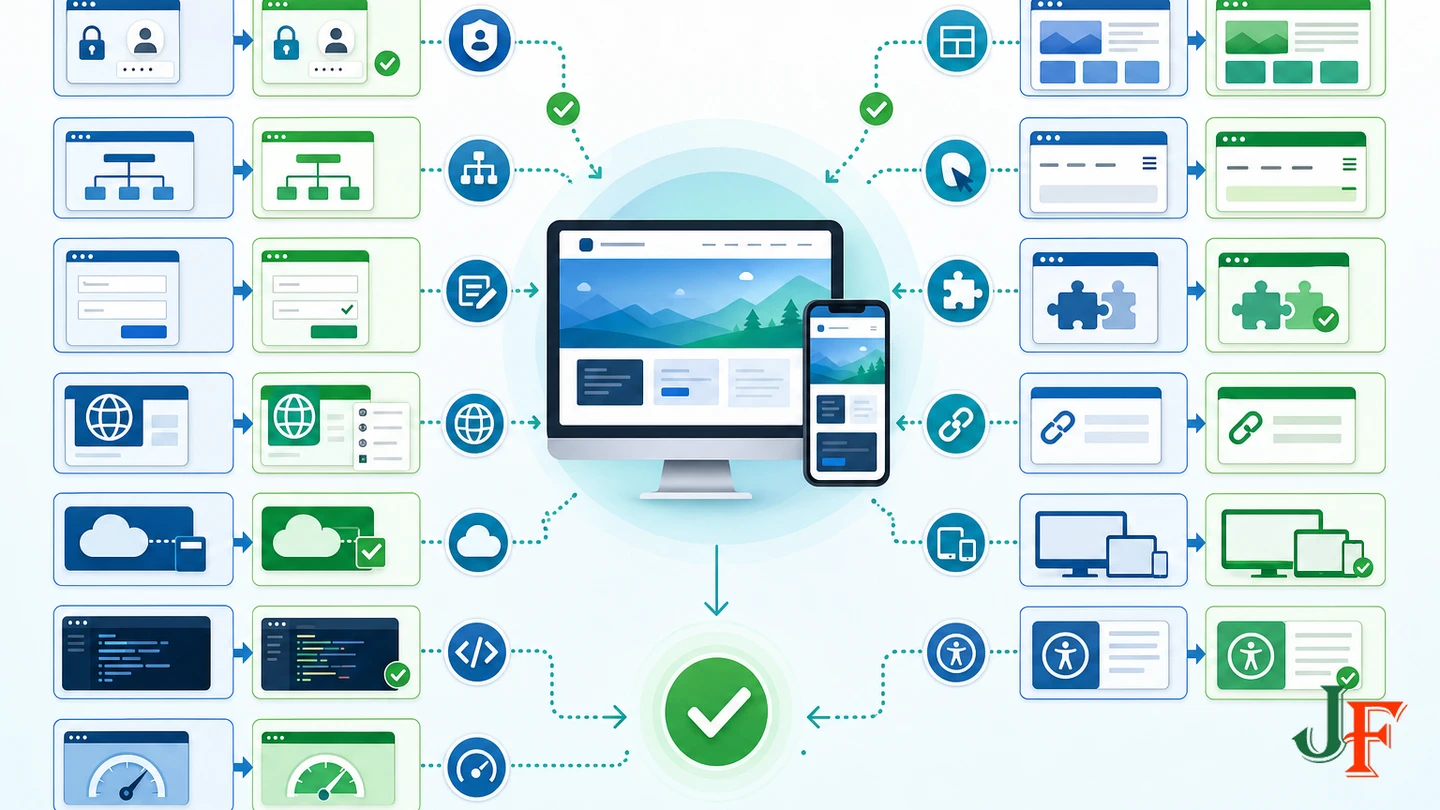
The following is an editorial best-practice checklist built around Joomla's documented requirement to test frontend, administrator, database, extension-discovery, and update-log behavior. Adapt it to the site's real workflows.
| Area | Representative checks |
|---|---|
| Access and identity | Administrator and frontend login, logout, password reset, registration, MFA, user groups, access levels, and permissions. |
| Content and layouts | Featured and category views, individual articles, article-specific options, menus, modules, template overrides, pagination, tags, custom fields, and error pages. |
| Extensions | Forms, search, media, newsletters, membership, commerce, downloads, workflows, editors, and each site's business-critical components. |
| Language and URLs | Multilingual associations, language switching, SEF URLs, redirects, canonical output where used, metadata, sitemap generation, and representative inbound links. |
| Integrations | APIs, webhooks, CRM, SMS, payment test modes, scheduled tasks, analytics, and CDN behavior using provider-specific sandbox or suppression controls. |
| Quality | Responsive layouts, keyboard navigation, focus behavior, form labels, visible errors, page output, browser console, and representative performance checks. |
Compare results with the recorded baseline. Accessibility, SEO, and performance checks are recommended verification activities; they are not automatic benefits of using staging.
Technical post-update checks
- Review the frontend and System Dashboard for errors or warnings.
- Check the database maintenance view for schema problems.
- Use Discover to identify core extensions that were not installed correctly.
- Inspect PHP and web-server logs, and review the browser console on representative pages.
- Review
administrator/logs/joomla_update.php. Joomla documents this log as recording stages such as download, installation, SQL updates, and cleanup. - Clear relevant Joomla, server, browser, proxy, and CDN caches using controls appropriate to the environment, then retest.
These Joomla post-update checks are documented in the official Version Update guide.
Troubleshoot failure and prove rollback

If staging fails, stop and preserve the evidence. Record the exact error and time, inspect administrator/logs/joomla_update.php and server logs, confirm PHP and database requirements, and isolate the extension, template, override, or configuration involved. Test one corrective action at a time. Do not continue to production until the cause and recovery procedure are understood.
Then prove rollback:
- Record the rollback trigger, such as failed login, broken checkout, schema error, or unacceptable frontend regression.
- Restore the pre-update filesystem and database into a clean location.
- Confirm frontend, administrator, and critical workflows.
- Record the restoration duration, people involved, commands or controls used, and validation results.
A rollback test demonstrates that both parts of the recovery backup work. It also gives the team a measured recovery path without claiming that production recovery will be identical.
Related guidance: plan a Joomla update rollback.
Build a runbook and deploy the rehearsed sequence
Turn the successful trial into a reusable runbook. Record the source and target versions, environment details, backup locations, extension actions, update sequence, test cases, screenshots, timing, responsible staff, approval, rollback trigger, and post-deployment checks. This is an editorial best-practice recommendation derived from Joomla's trial-run, backup, and verification workflow.
For production:
- Choose a maintenance window appropriate to the site and team.
- Account for production content, users, orders, or other changes made since the staging clone.
- Create and verify a fresh production files-and-database backup.
- Repeat the exact proven sequence rather than experimenting during deployment.
- Run the prioritized frontend, administrator, database, Discover, log, and integration checks.
- Use the documented rollback decision point if a critical check fails.
For an active content, membership, or commerce site, the safer default is to repeat the tested update on production rather than blindly overwrite production with a stale staging database. Selective deployment or full replacement requires a site-specific synchronization and data-loss plan (Joomla backup guidance).
Confirm that staging-only access restrictions, noindex directives, debug settings, verbose logs, sandbox credentials, and mail suppression have not been transferred to or left enabled on production.
A dated case study: Joomla 5.4.7 and 6.1.2
As of August 9, 2026, Joomla documented a regression in exactly Joomla 5.4.7 and 6.1.2 in which article-specific parameters could be ignored when articles were displayed through category layouts, potentially producing the wrong layout. This illustrates why testing representative articles matters even for stable security and bugfix releases (release announcement; Joomla 6.1.2 Known Issues).
The official hotfix was restricted to those exact versions, and Joomla instructed administrators to make a full backup and test it on staging first. It must not be applied or recommended for any other Joomla version.
Common questions
Can staging share the production database?
No. Use a separate database and credentials so testing cannot modify production. Restore into an empty or newly created database.
Does the Pre-Update Check prove compatibility?
No. It is a high-level aid that depends on extension-developer metadata. Review vendor guidance and test real workflows.
Should patch updates be tested?
Yes when the site is business-critical, customized, commerce-focused, membership-based, multilingual, or agency-managed. Patch updates may lack the documented Pre-Update Check, and exact-version regressions can still affect stable releases.
When is an update ready for production?
Only after the update completes cleanly, representative workflows pass, technical checks are satisfactory, external effects are controlled, rollback has been demonstrated, and the production sequence and stop conditions are documented.
Does staging eliminate production risk?
No. Environments can drift, extension metadata can be incomplete, external integrations and caches can differ, and production data can change after cloning. Staging reduces risk; it cannot eliminate it.
Printable staging update checklist
- Complete production files-and-database backup created
- Backup successfully restored to clean staging
- Separate staging database and credentials confirmed
- Authentication, HTTPS, and indexing controls verified
- Email and external side effects disabled, redirected, or sandboxed
- Production and target environment requirements compared
- Extensions, template, and overrides inventoried
- Baseline and staging checkpoint recorded
- Correct routine or major-upgrade procedure followed
- Functional and technical tests passed
- Rollback restored and timed
- Runbook approved and fresh production backup scheduled
Sources
- Joomla! Project Roadmap
- Joomla 6.1.2 & 5.4.7 Security & Bugfix Release
- Joomla 6.1.2 Known Issues
- Joomla 5 to 6 Planning and Upgrade Step by Step
- Version Update
- Backup
- Technical Requirements
- Technical Requirements: Joomla 5.4
- Backup Restoration Script for Joomla: Site Setup Page
- Block Search Indexing with noindex
- Introduction to robots.txt

Add comment