
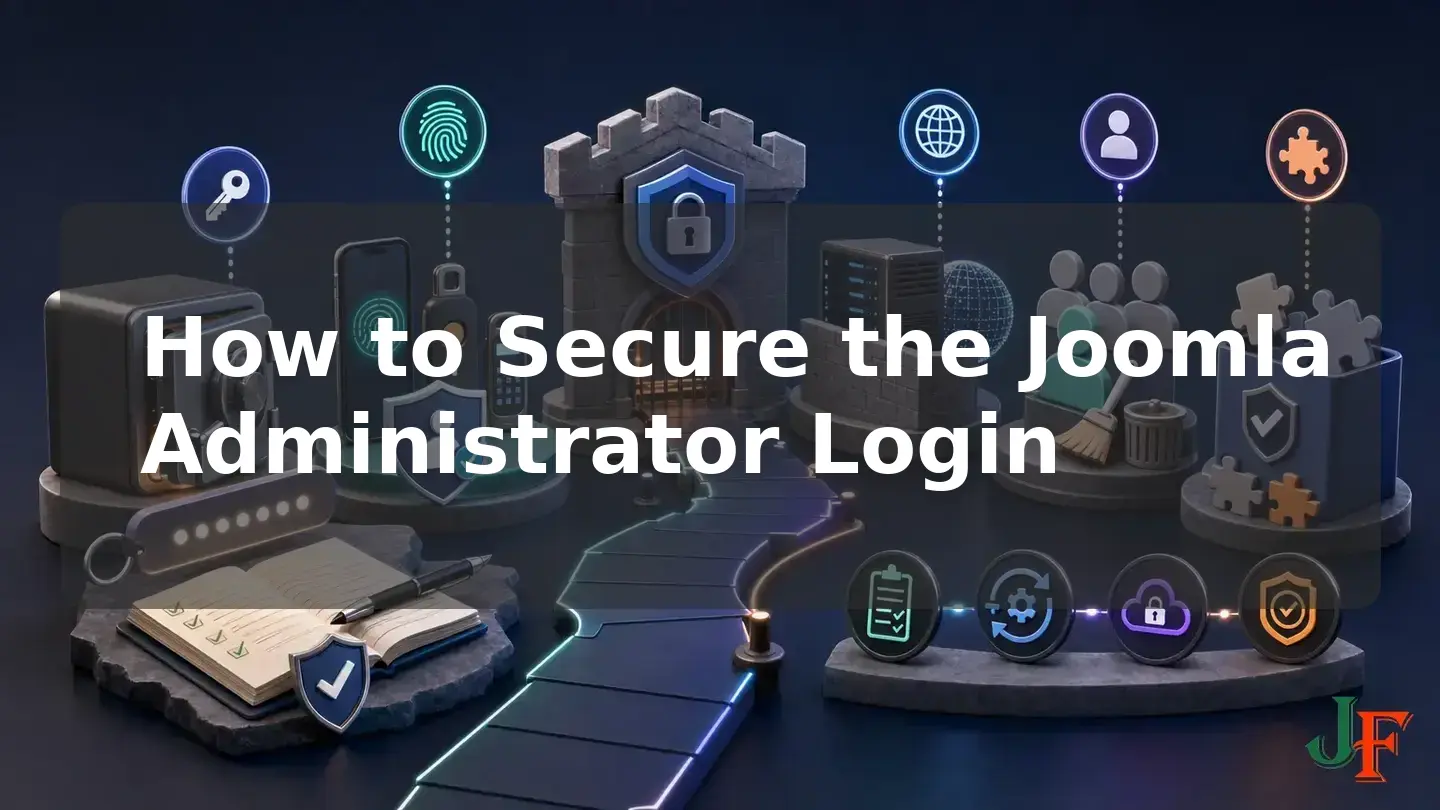
To secure Joomla administrator login access effectively, do not rely on a single setting or a hidden URL. A safer approach combines supported Joomla software, a long and unique password, Multi-factor Authentication (MFA), carefully limited user permissions, clean extension management, prepared recovery options, and hosting-level restrictions where they are operationally appropriate.
This beginner-friendly guide is intended for Joomla administrators and hosting customers working primarily with Joomla 6.1.x and 5.4.x. It explains what each security layer does, how to introduce the layers without locking yourself out, and how to test the result. Joomla uses the term Multi-factor Authentication; the familiar phrase Joomla two factor authentication, or 2FA, refers to the common case in which two factors are used.
Before changing authentication or server rules, make a tested backup, preserve an authenticated administrator session, verify a separate recovery route, and make sure you can reverse hosting-level changes. Administrator login hardening is an ongoing maintenance process, not a one-time installation task.
A layered plan to secure Joomla administrator access
An account with administrator access may be able to edit content, manage users, install extensions, or change configuration, depending on its Joomla Access Control List (ACL) permissions. A Super User has especially broad responsibility. Joomla can instead grant backend access while limiting an account to selected components, which makes least privilege an important part of login security. The official Joomla Access Control documentation explains these permission distinctions.
No single layer in this guide replaces the others:
- Updates address known vulnerabilities in Joomla and extensions.
- A unique password limits damage from credential reuse or disclosure.
- MFA requires additional verification after the initial login succeeds.
- Least privilege limits what a compromised account can do.
- Extension hygiene removes unnecessary or known-vulnerable code.
- Hosting restrictions can place another access boundary in front of the administrator resource.
- Recovery preparation reduces the risk that your own security controls will lock out every authorized administrator.
Use defense in depth: make every layer useful, but do not treat any one layer as proof that the administrator login is secure.
Supported Joomla versions recorded on August 2, 2026
As of the research date, August 2, 2026, Joomla 6.1.2 and Joomla 5.4.7 were the stable CMS releases, and both contained security fixes. Joomla 5 regular bug-fix support was scheduled through October 13, 2026, with security support through October 12, 2027. Joomla 6 regular bug-fix support was scheduled through October 17, 2028, with security support through October 16, 2029. These are dated lifecycle facts from the official Joomla Project Roadmap and the Joomla 6.1.2 and 5.4.7 release announcement.
Joomla 4.x and earlier were not listed as supported CMS release series on the official roadmap on that date. Sites on those versions need an upgrade or migration plan rather than new security configuration being treated as an adequate substitute for supported software.
The July 7, 2026 security release fixed multiple core vulnerabilities, including an XSS issue in MFA method management. This dated example is a useful reminder that authentication-related code must also remain patched; enabling MFA does not remove the need to install security updates.
For broader version-migration planning, plan a Joomla 5 to Joomla 6 upgrade separately from child-template maintenance.
Before you begin: backup and prepare recovery access

Introduce login protections in stages. If you change the password, MFA configuration, IP rules, and HTTP authentication at the same time, identifying the cause of a lockout becomes much harder.
- Create a complete backup. Include the Joomla files and database, and confirm that you know how the backup would be restored.
- Keep the current administrator session open. Do not log out of the only working privileged session while configuring MFA or server rules.
- Verify another recovery route. Where practical, confirm a separate privileged recovery account controlled by an authorized person. It should have its own password and recovery factors.
- Prepare hosting-level rollback access. Confirm access through the hosting panel, file manager, SSH, or another available channel that can remove a faulty Apache rule.
- Use a separate browser session for testing. A private window or another browser lets you test a fresh login while retaining the original authenticated session.
- Record the order of changes. Change one layer, test it, and only then continue to the next layer.
create and test a complete Joomla backup or use a staging copy before editing the production design.
Step 1: update Joomla core to a supported patch release
Back up first, then install the latest supported Joomla patch appropriate for your release series. Review the official release information, complete the update, and test both the public site and administrator application. Do not assume an authentication feature is maintenance-free merely because it is part of Joomla core.
If the site is on Joomla 5, include the Joomla 6 migration path in operational planning. If it is on Joomla 4 or earlier, prioritize a supported upgrade or migration project. A server password in front of an unsupported application cannot repair vulnerabilities in the application behind it.
Related guidance: update Joomla safely.
Step 2: create a long, unique administrator password
Give every administrator account a unique, randomly generated password stored in a reputable password manager. Do not reuse that password for email, hosting, FTP, the database, HTTP directory authentication, or any other service.
NIST SP 800-63B-4 specifies a minimum of 15 characters when a password is used as a single authentication factor. It permits a minimum of eight characters when the password is used only as part of an MFA process. For a privileged Joomla account, a practical policy is to use at least 15 characters even when MFA is enabled. That is a stricter operational recommendation, not a claim that NIST requires 15 characters in the MFA case.
Current NIST guidance also supports password-manager use, paste or autofill, and screening new passwords against commonly used, expected, or compromised values. It advises against arbitrary character-composition rules and routine periodic password changes. Change an administrator password when it has been reused, disclosed, found in breach data, shared improperly, or is otherwise suspected or confirmed to be compromised—not merely because another month has passed.
Joomla password settings versus current NIST guidance
Joomla exposes password-policy controls under Users: Options, including minimum counts for uppercase letters, lowercase letters, numbers, and symbols. The available controls are documented in Joomla User Password Security.
Those controls can help an organization implement a contractual composition policy, but their presence does not prove that mandatory mixtures are superior. Base the primary recommendation on length, uniqueness, password-manager compatibility, compromised-password screening, MFA, and changes following suspected compromise. Avoid making users satisfy a complex mixture while still permitting short or reused passwords.
Step 3: enable Joomla Multi-factor Authentication

Joomla MFA uses a captive-login workflow: after the initial login succeeds, a user with MFA enabled must complete additional verification before reaching protected pages. Joomla supports more than one configured MFA method on an account, reducing recovery risk when one authenticator is unavailable.
As documented on August 2, 2026, core methods included authenticator-generated verification codes, YubiKey, Web Authentication/WebAuthn, email codes, and a fixed-code test method. The fixed-code plugin is disabled by default, is intended for testing and illustration, and should not be enabled on a production site. See the official Joomla Multi-factor Authentication documentation for the supported architecture and methods.
Choosing an MFA method
| Method | Practical role for an administrator | Important caution |
|---|---|---|
| WebAuthn | Preferred for privileged accounts where a compatible HTTPS environment and authenticator are available. Joomla documents it as its strongest listed authentication option, and its public-key approach is substantially more resistant to phishing than passwords or manually entered one-time codes. | Keep a tested fallback method and backup codes. Test the site's actual browser, device, hosting, and authentication workflow. |
| Authenticator-generated code | A suitable fallback or primary method where WebAuthn is unavailable. | Manually entered codes can be phished. Preserve recovery access if the device is lost. |
| YubiKey | A supported hardware-based option documented by Joomla. | Confirm availability and retain another tested recovery method. |
| Email code | A supported fallback when stronger methods are unavailable. | Security and availability depend on the email account and mail delivery. Do not describe it as equivalent to WebAuthn in phishing resistance. |
| Fixed code | Testing or illustration only. | Do not enable it in production. |
Configure MFA without locking yourself out
- Keep an existing authenticated administrator session open.
- Confirm that the account has a current, unique password and accurate recovery contact information.
- Open the account's MFA configuration and register the preferred method. Exact interface labels can vary, so follow the controls shown by the installed supported Joomla release.
- Prefer WebAuthn for a privileged account when HTTPS, the browser, and a compatible authenticator support it.
- Generate the available backup codes and store them securely outside the Joomla site and outside the everyday authentication device.
- Configure a second MFA method where practical—for example, WebAuthn with an authenticator-generated code as a separate fallback.
- In a private window or separate browser, complete a fresh administrator login and test both the preferred method and the planned recovery method.
- Verify recovery for another authorized privileged account before applying broader enforcement.
Step 4: protect the /administrator resource at the hosting layer
The conventional Joomla backend login is reached by appending /administrator to the site's base URL, although site-specific extensions or access controls may alter the workflow. This conventional path is documented in Logging in to Joomla.
A hosting or web-server restriction can place a separate boundary in front of that resource. The examples below apply only to Apache HTTP Server 2.4. They are not Nginx, IIS, LiteSpeed, CDN, WAF, or hosting-control-panel instructions. Confirm the server type, required modules, and permitted configuration context with the hosting provider.
Before applying a restriction, retain an authenticated Joomla session, preserve a hosting-level rollback channel, and test from a separate browser. Afterward, test WebAuthn, SSO, administrator AJAX, API, scheduled-task, and extension workflows actually used by the site. Compatibility is site-specific and is not guaranteed.
Apache HTTP Basic Authentication over HTTPS
Apache can add HTTP Basic Authentication in front of a protected directory with AuthType Basic, AuthUserFile, and a Require directive. The required authentication modules and configuration permissions must be available. Place the password file outside the web-accessible document root and use a credential that is different from Joomla, email, and hosting credentials.
Basic Authentication must be used only over HTTPS because the Basic credential is not independently encrypted in transit. The following is an Apache 2.4 pattern, not a universal copy-and-paste configuration:
AuthType Basic
AuthName "Restricted Joomla Administrator"
AuthUserFile "/absolute/path/outside/document-root/.htpasswd"
Require valid-user
Replace the path with the server's real absolute path and place the directives only in a configuration context authorized by the host. The official Apache Authentication and Authorization guide documents the prerequisites, password-file protection, TLS requirement, and relevant directives. A hosting provider's directory-protection feature may be preferable when it safely manages the server-specific configuration.
Apache 2.4 IP allowlisting with Require ip
If every administrator connects through a stable office address, VPN egress address, or another predictable network, an IP allowlist may be useful. Apache 2.4 uses Require ip. The older Order, Allow, and Deny directives found in historical tutorials are deprecated compatibility syntax.
Require ip YOUR_STATIC_PUBLIC_IP_OR_NETWORKThe placeholder must be replaced with the verified public IPv4 or IPv6 address or network. Do not use an IP allowlist when administrators depend on frequently changing addresses unless a reliable stable access route is available. IPv6, VPNs, proxies, and CDNs can cause the server to see an address different from the one an administrator expects, resulting in a 403 response or lockout. Consult the official Apache 2.4 Access Control documentation.
When a hidden administrator URL helps—and what it cannot do
Some site-specific protection extensions alter how the conventional administrator login is reached. Hiding or changing the route may reduce automated noise, but it is only optional defense in depth. It is not authentication and does not replace supported software, MFA, unique credentials, ACL, extension hygiene, or properly scoped server access controls.
No administrator-URL product is recommended here because no third-party product was evaluated for the target Joomla releases. If a site already uses such a tool, document the alternative login route and recovery procedure, and include the extension in update and vulnerability audits.
Step 5: audit administrator and Super User accounts

Review every account capable of entering the backend. For each account, identify the owner, business purpose, user groups, last known need for access, MFA readiness, and recovery responsibility.
- Block accounts belonging to departed staff, former contractors, unknown owners, or suspicious users.
- Investigate unexpected privileged accounts rather than merely changing their names.
- Remove unnecessary Super User membership.
- Create narrower administrator groups where practical and grant only the components and actions needed for each role.
- Confirm that shared accounts are replaced with individually attributable accounts where operationally possible.
- Review service and integration accounts before changing them so that required workflows are understood.
Joomla supports blocking a user without deleting the account. Blocking prevents login while preserving associations such as article authorship and allows later reversal. Review ownership, audit, integration, and retention requirements before deletion. The distinction is documented in the official Joomla user-management guidance.
Not every backend user needs to be a Super User. Joomla ACL can grant Administrator Login while limiting an account to selected components. Use the least permission required, then test the account to confirm that it can complete its assigned task without gaining unrelated control.
Step 6: audit, update, and remove extensions
Extension hygiene is part of Joomla admin security because vulnerable files may remain directly reachable even when a module is unpublished or a menu link is removed. Unpublishing is not the same as uninstalling.
- Inventory installed components, plugins, modules, templates, packages, and libraries.
- Record each extension's version, vendor, purpose, support status, and responsible owner.
- Install supported security updates through the extension's approved update channel.
- Review extension-vendor security advisories and the Joomla Vulnerable Extensions List (VEL).
- If an unresolved VEL entry has no safe patch, follow the recommendation to uninstall the affected extension. If a resolved entry identifies a patched version, update to the resolved version after backup and compatibility review.
- Uninstall extensions that are vulnerable, abandoned, or no longer required.
- Check that uninstalling actually removed the extension's related files.
- Review dependencies before removing retained data. Do not manually delete database tables without a backup and dependency review.
The Joomla Vulnerable Extensions List documentation explicitly warns that the list may not be complete or fully current. Absence from the VEL is therefore not proof that an extension is safe. Use the VEL as one input alongside vendor advisories and supported update channels.
The official Vulnerable Extensions guide further explains that disabling or unpublishing an extension does not remove vulnerable files and recommends checking file removal after uninstalling.
Related guidance: check Joomla extensions for known vulnerabilities.
Related guidance: update Joomla extensions safely.
Test the hardened login without locking yourself out
After each change, use a private window or separate browser to run this test sequence while the original authenticated session remains open:
- Load a normal public page and verify that frontend access still works.
- Request the administrator login through the site's documented route.
- If HTTP authentication is enabled, confirm that HTTPS is active and the separate HTTP credential is required only where intended.
- Complete the Joomla password step using password-manager autofill or paste.
- Complete the preferred MFA method.
- Log out of the test session and test the approved fallback or a backup code.
- Test every required backend component and workflow.
- If an IP rule is used, confirm the expected behavior from both an allowed connection and a controlled non-allowed connection.
- Confirm that the hosting-level rollback route still works.
- Record the successful configuration and recovery responsibilities in the site's protected operations documentation.
Troubleshooting common login-hardening problems

Apache returns 403 Forbidden
The connecting public address may differ from the value in the allowlist, may have changed, or may be using IPv6. A VPN, proxy, or CDN can also change the address Apache evaluates. Use the prepared hosting-level channel to roll back the rule, confirm the actual public egress path, and then correct the Apache 2.4 Require ip scope.
Adding protection causes HTTP 500
Possible causes supported by the Apache documentation include unavailable modules, directives used in a disallowed context, an incorrect AuthUserFile path, unsuitable AllowOverride permissions, or deprecated syntax copied from an older tutorial. Roll back first, read the server error log, and ask the hosting provider which configuration method is supported.
The WebAuthn method cannot be completed
Confirm that the administrator login is using HTTPS and that the browser, device, and authenticator are compatible. Use the tested fallback method rather than repeatedly changing unrelated settings. Keep the working administrator session available while diagnosing the site's actual authentication workflow.
The administrator lost the MFA device
Use a previously configured secondary method or a securely stored backup code. If another verified privileged administrator is available, follow the documented recovery process from that account. Recovery should have been prepared before enforcement; do not wait for an emergency to discover whether backup codes or alternate methods work.
Public pages stopped working
A server rule may have been applied at the document root or otherwise scoped too broadly instead of protecting only the intended administrator resource. Roll back the latest rule through the prepared hosting channel, confirm public frontend behavior, and have the hosting provider review the server-specific scope.
Practical Joomla administrator security checklist
- Back up the site before security-sensitive updates or access-control changes.
- Run a supported Joomla release and install current security patches.
- Use a unique password-manager-generated administrator password, preferably at least 15 characters for privileged accounts.
- Do not require routine monthly password changes without a compromise-related reason.
- Enable Joomla MFA and prefer WebAuthn where the HTTPS environment and authenticator are compatible.
- Configure a tested fallback and store backup codes outside the site and everyday device.
- Do not enable the fixed-code MFA method in production.
- Audit every backend account and reserve Super User access for genuine need.
- Block former or suspicious users before deciding whether deletion is appropriate.
- Use Joomla ACL to restrict administrators to required components.
- Update supported extensions and uninstall vulnerable, abandoned, or unused extensions.
- Check vendor advisories as well as the non-exhaustive VEL.
- Verify that extension files were removed after uninstalling.
- Use hosting-level restrictions only when they fit the server and administrator network conditions.
- Require HTTPS for Apache HTTP Basic Authentication.
- Use Apache 2.4
Require ip, not deprecatedOrder,Allow, orDenysyntax. - Keep a rollback channel and test from a separate browser after every restriction.
Related guidance: complete Joomla security checklist.
Ongoing maintenance

Review administrator accounts, privileged groups, recovery ownership, and installed extensions on a regular operational schedule. At every Joomla or extension security release, back up, assess the advisory, update promptly, and test the public site, administrator login, MFA, and required backend workflows.
Also review access whenever staff, agencies, or hosting arrangements change. Immediately block access that is no longer required, rotate credentials after suspected disclosure, replace lost authenticators, regenerate exposed recovery codes, and document any change to the administrator login route or hosting restriction.
Frequently asked questions
Does Joomla include two-factor authentication?
Current supported Joomla releases include a core Multi-factor Authentication system. “Two-factor authentication” or “2FA” is the familiar search term, but Joomla's current feature name is MFA. An account can have multiple methods configured.
Which MFA method should a Joomla administrator choose?
Prefer WebAuthn for privileged accounts when a compatible HTTPS environment and authenticator are available. Keep a separately tested fallback, such as an authenticator-generated code, and securely stored backup codes.
Should Joomla administrators change passwords every month?
No—not as an arbitrary default. Current NIST guidance rejects routine periodic changes. Change a password following reuse, disclosure, breach evidence, improper sharing, or another reason to suspect compromise.
Does every administrator need to be a Super User?
No. Joomla ACL can permit backend login while limiting an account to selected components or tasks. Reserve unrestricted Super User access for people who genuinely require it.
Is hiding /administrator enough?
No. A changed or hidden route may reduce automated noise, but it is not authentication. It cannot replace patching, unique credentials, MFA, least privilege, extension hygiene, or carefully tested access controls.
Is IP allowlisting suitable for every administrator?
No. It is most practical with stable office or VPN egress addresses. Dynamic addresses, IPv6, proxies, VPN changes, and CDNs can cause lockouts or make the rule operationally unsuitable.
Is the Joomla VEL a complete list of vulnerable extensions?
No. The VEL is useful, but its documentation warns that it may not be complete or fully current. Check extension-vendor advisories and supported update channels as well.
Should a former administrator be deleted immediately?
Usually block the account first. Blocking prevents login while preserving associations and allowing reversal. Review content ownership, audit requirements, integrations, and retention obligations before deletion.
Sources
- Joomla! Project Roadmap, Joomla! Project / Open Source Matters.
- Joomla 6.1.2 & 5.4.7 Security & Bugfix Release, Joomla! Project / Open Source Matters.
- Multi-factor Authentication, Joomla! User Documentation / Open Source Matters.
- Logging in to Joomla, Joomla! User Documentation / Open Source Matters.
- User Password Security, Joomla! User Documentation / Open Source Matters.
- NIST Special Publication 800-63B-4: Digital Identity Guidelines — Authentication and Authenticator Management, National Institute of Standards and Technology.
- User Registration, Joomla! User Documentation / Open Source Matters.
- Access Control, Joomla! User Documentation / Open Source Matters.
- Authentication and Authorization, Apache Software Foundation.
- Access Control — Apache HTTP Server Version 2.4, Apache Software Foundation.
- The Joomla! Vulnerable Extensions List — About, Joomla! Extensions Directory / Open Source Matters.
- Vulnerable Extensions, Joomla! User Documentation / Open Source Matters.

Add comment