
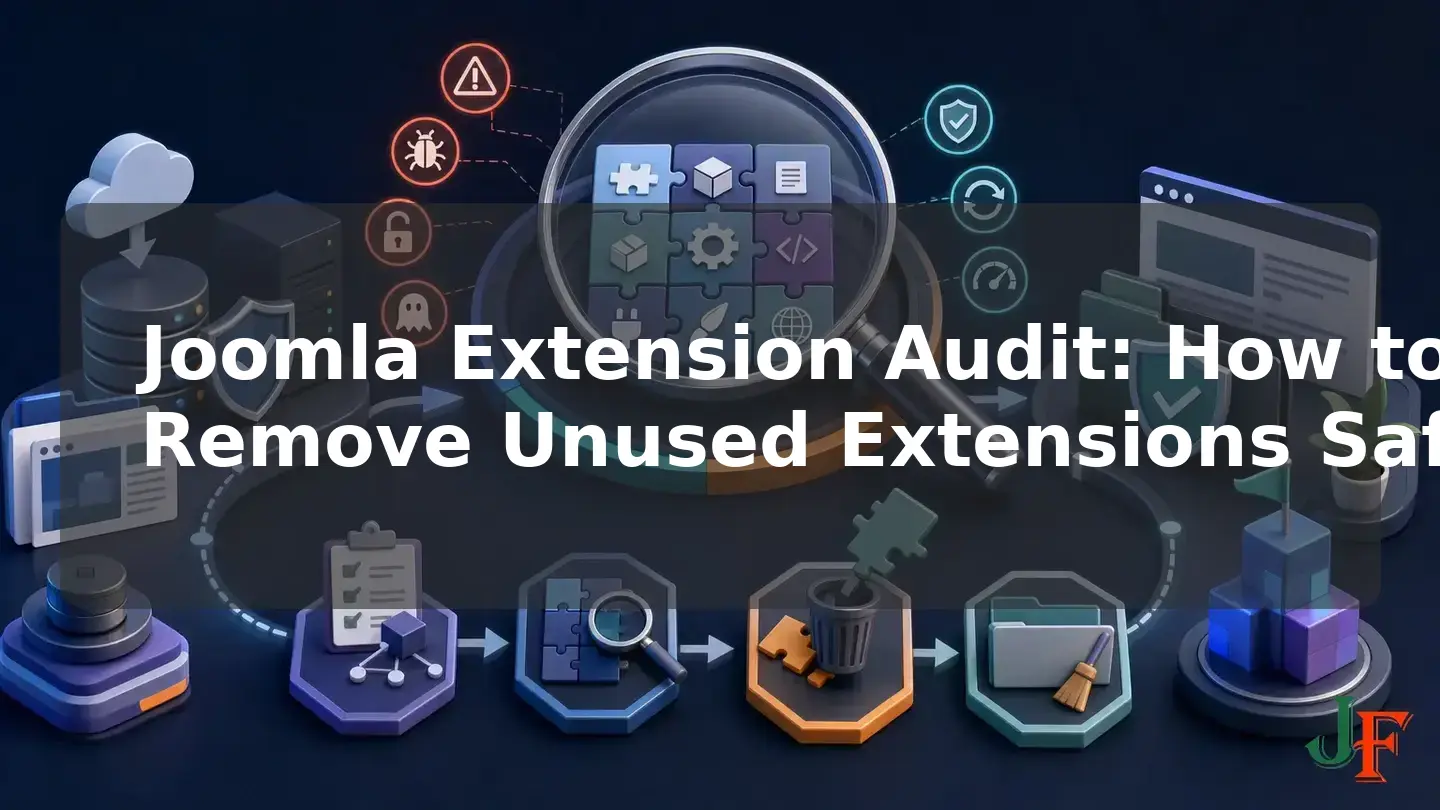
Unused Joomla extensions are easy to forget, especially when they no longer display a visible page or module. However, an extension can still include plugins, API endpoints, administrator features, scheduled work, update connections, database tables, or directly reachable files. A structured Joomla extension audit helps you identify that hidden footprint before deciding what to retain, update, replace, investigate, or uninstall.
>This tutorial provides a cautious workflow for Joomla 6.1 and Joomla 5.4 site owners. You will build an inventory, distinguish third-party products from protected Joomla extensions, look for dependencies, check security information, create and restore-test a complete backup, test changes on staging, uninstall through Joomla, and verify the result. Removing genuinely unused code can reduce security and maintenance exposure. Performance changes are less predictable, however, so they should be measured rather than assumed.What a Joomla extension audit covers
A Joomla extension audit is a documented review of every installed component, module, plugin, template, language, library, file extension, and package. For each item, record its exact version, publisher, status, package relationship, support state, update availability, known security information, actual use, data ownership, and responsible site owner.
The outcome should place each extension into one of these categories:
- Retain: Required, supported, compatible, and current.
- Update: Required, but an applicable update is available.
- Replace: Required functionality provided by an unsupported or unsuitable product.
- Disable and test: Apparently unnecessary, but not yet proven safe to remove.
- Uninstall: Confirmed unnecessary after dependency and staging tests.
- Investigate: Ownership, purpose, support status, or security state remains unclear.
This approach follows the broader security practice of inventorying component versions, monitoring vulnerability information, and removing unnecessary components and files, as described by OWASP guidance on vulnerable and outdated components.
Current Joomla version scope
As of 12 August 2026, Joomla 6.1.2 and Joomla 5.4.7, both released on 7 July 2026, are the latest stable releases in their respective supported series. Joomla 6.1.3 and 5.4.8 were scheduled for 18 August 2026 and were not stable releases on the research date. These details are recorded in the Joomla Project Roadmap and confirmed for the current downloads by the official Joomla download portal.
This tutorial therefore targets Joomla 6.1 and 5.4. Joomla 4 support ended on 17 October 2025, according to the Joomla Documentation portal. Instructions involving Joomla 4 or earlier releases should be treated as migration or recovery context, not as the recommended basis for a supported production site.
How forgotten extensions become security risk points
An extension is not dangerous simply because it is old. Age is an audit trigger, not proof of a vulnerability. Risk increases when the exact installed version has a known vulnerability, the vendor has stopped maintaining it, updates are unavailable for the current Joomla or PHP environment, privileged functionality is exposed, or nobody is responsible for monitoring the product.
Removing a menu link or unpublishing a module does not remove the underlying extension. Plugins may work through Joomla events, integrations may call components or APIs, and extension files can remain on the server. Joomla's security checklist recommends removing unused extensions and checking that uninstall scripts removed their associated files and folders. That checklist includes historical material and is marked for review, so this tutorial relies only on its durable backup, testing, unused-extension removal, reachable-file, and leftover-data guidance.
Important: Disabling or unpublishing a known-vulnerable extension is not necessarily a permanent security remedy. Relevant vulnerable files may remain directly addressable while they are still present. Follow the applicable advisory by patching or uninstalling the product.
A dated real-world example illustrates the possible impact. As of 12 August 2026, CVE-2026-48908 affected SP Page Builder versions 1.0.0 through 6.6.1. The flaw allowed unauthenticated arbitrary file upload leading to PHP execution and was added to CISA's Known Exploited Vulnerabilities catalog on 7 July 2026. This example does not imply that every old extension is vulnerable; it shows why exact product and version evidence matters.
How extensions can affect performance—and when they may not
Do not assume that every installed extension slows every frontend request. The effect depends on whether the extension executes and what it does. An enabled plugin may add work because Joomla imports plugins, instantiates them, identifies their event subscriptions, and calls subscribers when relevant events are dispatched. The measurable cost is specific to the plugin and event, as explained in the Joomla plugin architecture documentation.
Published modules, active components, asset loaders, database operations, remote requests, and scheduled tasks may also add work. A disabled extension may have little or no measurable frontend runtime effect. Installed extensions can still add administrator-side maintenance activity because Joomla's update infrastructure contacts configured update servers during update checks. The cited update-server documentation is versioned for Joomla 4.4, so it supports the architectural principle rather than an unverified claim about exact Joomla 6.1 timing or interface behavior.
Measure relevant page timings, database activity, generated assets, scheduled work, and administrator update-check duration before and after removal. Do not promise speed, Core Web Vitals, SEO, or hosting-cost gains merely because the installed extension count decreases.
Before removing anything: backup, restore test, and staging

A safe audit starts with rollback preparation. A complete Joomla backup includes both the website files and the database. Joomla's backup guidance also recommends testing restore procedures; a restored copy can provide a staging environment where changes do not immediately endanger production.
- Create a fresh backup of all site files.
- Create a complete database backup from the same point in time.
- Record the backup date, location, method, and person responsible.
- Restore the backup to staging whenever possible.
- Confirm that both the frontend and administrator area work on the restored copy.
- Perform the extension audit and initial removal tests on staging.
Use a Super User or a user explicitly authorized to manage and uninstall extensions. Do not guess at a delegated Joomla 6.1 ACL combination.
create and test a complete Joomla backup or use a staging copy before editing the production design.
Related guidance: test the removal on a Joomla staging site.
Related guidance: review Joomla ACL permissions.
Build the extension inventory
The Joomla 5 administrator documentation places the manager at System > Manage > Extensions. It supports filtering, enabling, disabling, and uninstalling extensions. It also documents useful audit fields such as status, name, location, type, version, release date, author, plugin folder, package ID, and extension ID. Refer to Extensions: Manage for the documented interface. Joomla 6.1 installations should be checked carefully because exact labels or presentation may differ from the cited Joomla 5 help page.
Copy the relevant details into a worksheet. Do not evaluate only the items that appear on the public website. Use the available filters to review each type and status, including disabled plugins and administrator-only components.
Separate extensions by ownership and installation type
- Core or protected: Supplied and protected by Joomla. Protected extensions cannot be disabled or uninstalled through the normal manager. Do not attempt to remove them during a routine third-party audit.
- Third-party: Supplied by an external vendor or developer.
- Custom: Written specifically for the site and potentially dependent on undocumented business processes.
- Package member: A component, module, plugin, library, or template installed as part of a parent package.
- Unknown: An item whose publisher, purpose, or ownership still needs investigation.
Do not delete an extension merely because its name is unfamiliar. Assign unknown items to the investigate category until their role and dependencies are understood.
Related guidance: use the Joomla Extension Manager.
Prove whether an extension is actually unused

No visible frontend output does not establish that an extension is unused. Before changing its status, check the parts of the site where that extension type could operate. The following is a practical audit checklist and should be adapted to the product:
- Frontend and administrator menu items.
- Published and unpublished modules, including menu assignments.
- Enabled plugins and the events or workflows they support.
- Template assignments and any product-specific output dependencies.
- Editor buttons, custom fields, authentication, search, and finder integrations.
- Forms, email delivery, payments, redirects, and external service connections.
- Scheduled tasks, CLI operations, APIs, webhooks, and automation.
- Content shortcodes or embedded syntax that may still appear in articles.
- Custom code that calls the extension.
- Database tables and stored business data owned by the product.
Ask the people who manage content, sales, support, marketing, and integrations. A component that appears idle may support an administrator workflow or background service that the technical owner rarely sees.
Check updates, vendor support, VEL, CVEs, and KEV
Record the exact product name and installed version before researching it. Then check the vendor's current support notices, security advisories, changelog, update channel, and compatibility information. An expired commercial subscription may affect access to updates, but it does not by itself prove that the installed code is vulnerable.
Consult the Joomla Vulnerable Extensions List guidance. It recommends uninstalling extensions in the live list when no patch is known and updating affected versions represented in the resolved list. However, the VEL states that its information may not be complete, current, tested, or fully validated. Absence from the VEL is therefore not proof of safety.
Corroborate VEL information with the vendor and authoritative vulnerability records. Where relevant, check CVE/NVD information and CISA KEV status. Keep the links and review date in the audit worksheet so another administrator can reproduce the decision.
Related guidance: check Joomla and PHP compatibility.
Map packages and dependencies before removal
A Joomla package can install several related extension types together. Package manifest metadata controls how constituent components, modules, plugins, libraries, and templates are handled during removal. The official package documentation is versioned for Joomla 4.4, but its package architecture remains useful safety guidance for the audit.
Record the package ID and related extensions before uninstalling anything. When a product was installed as a package, normally prefer the parent package so its manifest can manage the related items together. Do not treat that as a guarantee for every vendor product: incorrect identifiers or plugin group information can produce an incomplete uninstall, and some packages may block removal of individual children.
Removing an apparently unused parent product without mapping its modules, plugins, menus, libraries, scheduled tasks, integrations, and data can break site behavior. This is a practical inference that must be tested for the specific product on staging.
Related guidance: understand Joomla package extensions.
Safest removal workflow: disable, test, uninstall, verify

- Document the candidate. Record its name, type, element, folder where applicable, package ID, installed version, publisher, and current status.
- Confirm ownership. Identify whether it is protected Joomla code, third-party code, custom code, or part of a package. Stop if ownership is unclear.
- Map usage and dependencies. Check menus, modules, plugins, content, integrations, scheduled work, custom code, and stored data.
- Review security status. Check the vendor, VEL, and authoritative vulnerability records using the exact installed version.
- Confirm rollback. Make sure the complete files-and-database backup is restorable and the staging copy works.
- Disable for a controlled test when appropriate. On staging, temporarily disable a non-emergency candidate and test the affected workflows. Disabling is a reversible diagnostic step, not permanent remediation for known-vulnerable code.
- Select the correct removal unit. If the extension belongs to a package, assess whether the parent package is the correct unit. Avoid removing arbitrary child extensions one by one.
- Uninstall through Joomla. In the documented manager, select the confirmed extension or package and use the uninstall action. Do not begin by deleting directories or database rows.
- Remove one product at a time. This makes it easier to identify the cause if a regression appears.
- Verify the result. Check extension records, expected files, update-related entries, retained data, and site behavior. Do not assume the uninstaller removed everything.
- Run regression tests. Test the frontend, administrator workflows, integrations, security-sensitive functions, scheduled work, and business processes before repeating the workflow for another product.
- Record the outcome. Note the uninstall date, test result, person responsible, remaining files or data, and rollback status.
How to remove an unused Joomla plugin safely
For a plugin, open the extension manager through the documented System > Manage > Extensions path and filter by plugin type. Where available, use folder, status, package, or name information to identify the correct record. Confirm its parent package and determine what Joomla events or workflows it supports.
If no emergency vulnerability is involved, disable the plugin on staging and test the site. Pay particular attention to authentication, content rendering, search, editors, forms, integrations, and administrator tasks relevant to that plugin. If it is confirmed unused, uninstall the parent package or the individual plugin as appropriate. Then verify the result and repeat the regression tests on production only after the staging result is accepted.
Verify files, update entries, tables, and data

Uninstallation is not the end of the audit. Official Joomla security guidance recommends checking whether associated files and folders were actually removed. Use known product ownership, vendor removal documentation, and your backup when evaluating leftovers. Do not delete unfamiliar files manually simply because their names resemble the old product.
Also check whether the removed product still appears in extension update information. The supplied research does not establish that Joomla 6.1 always removes every associated update-site record, so treat update entries as something to verify rather than assuming automatic cleanup.
Some uninstallers intentionally retain extension-created database tables or data to support later reinstallation or upgrades. Retained tables are not a reason for automatic deletion. First identify the owner, export information that must be preserved, check privacy or legal retention requirements, confirm that no remaining code needs the data, and ensure a database backup exists. Manual cleanup should be a separate, documented decision made only after ownership and rollback consequences are understood.
Related guidance: review Joomla update sites.
Post-uninstall regression checklist
- Load representative frontend pages and administrator screens.
- Test menus, modules, search, forms, authentication, and content editing.
- Run affected payment, email, API, webhook, and integration workflows.
- Check scheduled tasks and other background processes relevant to the removed product.
- Confirm expected URLs, redirects, status codes, metadata, sitemaps, and multilingual behavior.
- Test keyboard operation, forms, navigation, and assistive-technology-relevant output.
- Review available error information for new failures without assuming a host-specific log location.
- Clear relevant caches if stale output interferes with testing, then test again.
- Compare measured performance indicators with the pre-removal baseline.
- Confirm that staff can still complete essential business processes.
SEO and accessibility checks are recommendations because an extension may have supplied pages, metadata, redirects, structured output, navigation, forms, or accessibility-related behavior. Package and plugin relationships can make those effects indirect, as supported by the package architecture and plugin event model. Removing an arbitrary unused extension does not automatically improve rankings or accessibility.
Troubleshooting failed or incomplete uninstalls
The extension cannot be disabled or uninstalled
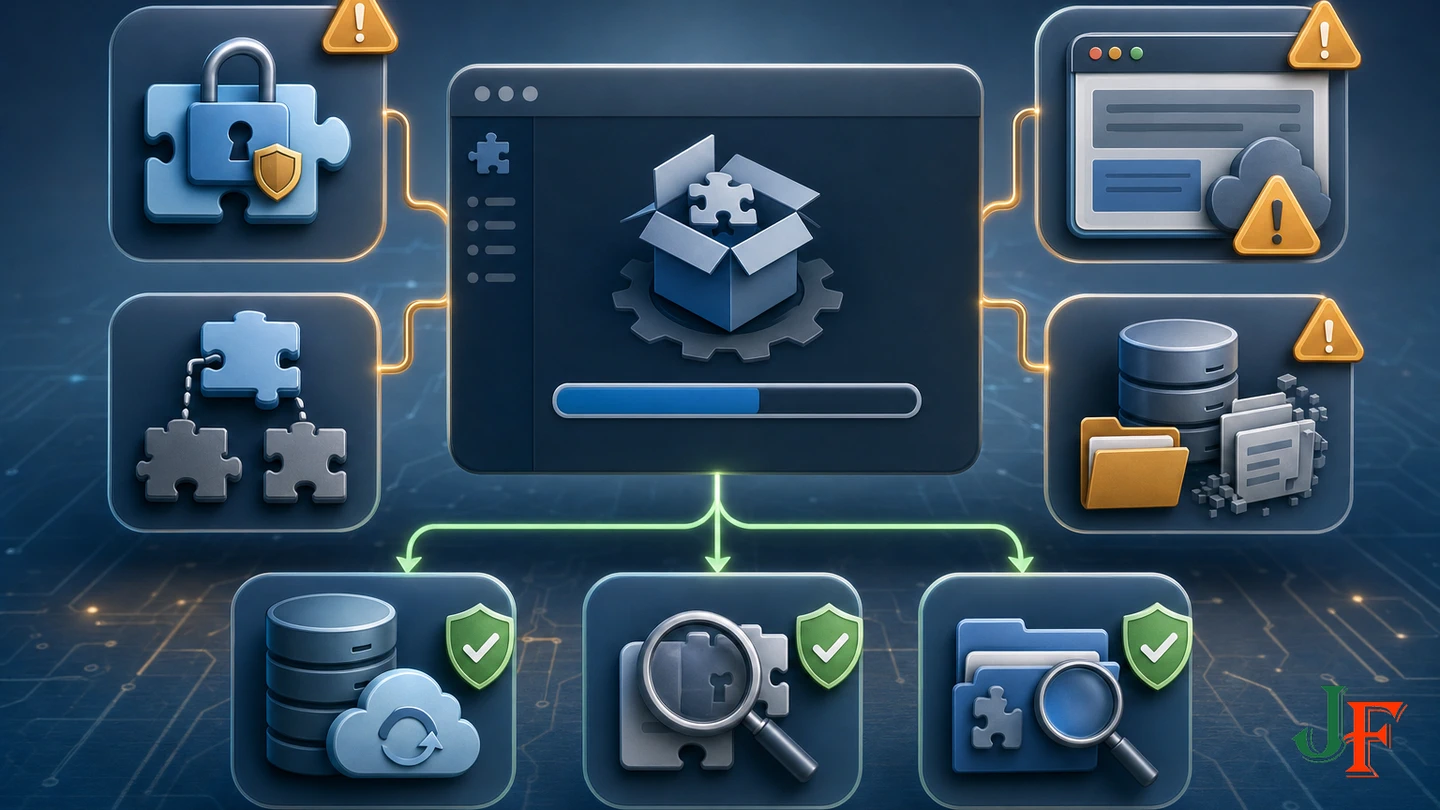
Confirm whether Joomla identifies it as protected. Protected extensions cannot be disabled or uninstalled through the normal manager. If it is third-party code, determine whether a parent package controls removal or prevents child uninstall. Consult the vendor's current removal documentation rather than forcing deletion.
The package disappears but child extensions remain
Record the remaining extension names, types, folders, and package information. Package removal can be incomplete when manifest identifiers or plugin group details are incorrect. Do not immediately remove database records or directories. Restore the backup if the site is unstable, and seek product-specific vendor guidance.
The site breaks after removal
Stop removing further extensions. Record the failed workflow and restore the known-good backup when necessary. Recheck menu items, modules, plugins, content references, integrations, scheduled tasks, and custom code. A staging failure is useful evidence that the extension was not genuinely unused or that the product left a dependency requiring a vendor-supported removal sequence.
Files or data remain
Do not assume every leftover is malicious or unnecessary. Compare the remaining item with documented product ownership and decide separately whether it should be retained, archived, or removed. Database data may have been intentionally retained for reinstallation.
Security emergency: when an extension is known vulnerable
If a current advisory says that the installed version is vulnerable, follow the advisory's remediation rather than relying on a normal wait-and-see disablement test. Update to an applicable fixed version when one is available and the extension is still required. If no patch is known and the VEL or authoritative advisory recommends removal, use the package-aware uninstall process after preserving the evidence and rollback resources appropriate to your situation.
If compromise is suspected, uninstalling the extension does not prove that uploaded files, backdoors, stolen credentials, or other consequences have been removed. Move from routine maintenance to an established incident-response and clean-rebuild process.
Practical example: retiring an old form package
Consider a hypothetical form product that installed a component, a frontend module, two plugins, and a library. The component has no obvious public menu item, so it initially appears unused. The audit nevertheless finds an unpublished module, an enabled content plugin, historical form submissions, and a webhook configuration.
The site owner records the package relationship, confirms that current forms use another system, exports data that must be retained, and asks the business owner whether the webhook is still required. After a complete backup and staging restore, the owner disables the old product's plugins and tests article rendering, forms, email delivery, and the replacement workflow.
Only after those checks pass does the owner uninstall the parent package through Joomla. The owner then verifies related extension records and files, reviews update information and retained tables, and runs the regression checklist. This example is intentionally package-aware: deleting only the visible component could have left its plugins and library behind.
Joomla extension audit worksheet
| Field | What to record |
|---|---|
| Identity | Name, element, type, folder, extension ID, publisher, and owner |
| Package | Package ID, parent product, and related components, modules, plugins, libraries, or templates |
| Versions | Installed version, available version, and Joomla/PHP compatibility evidence |
| Support and security | Vendor status, advisory links, VEL/CVE/KEV findings, and review date |
| Usage | Menus, modules, plugin role, content, data, integrations, APIs, and scheduled work |
| Decision | Retain, update, replace, disable and test, uninstall, or investigate |
| Rollback | Backup identifier, staging result, uninstall result, and restoration result |
No reviewed Joomla source establishes a universal audit interval. As an editorial best practice, consider reviewing the worksheet at least quarterly and before Joomla or PHP upgrades, after staffing or vendor changes, after a security alert, and before renewing extension subscriptions. This is a practical recommendation, not an official Joomla requirement.
Frequently asked questions
Is disabling an unused plugin enough?
Disabling is useful as a reversible staging test. It is not necessarily sufficient for a known-vulnerable extension because relevant files may remain reachable. Apply the current patch or uninstall the extension according to the advisory.
Should I remove the package or its individual extensions?
When a product was installed as a package, normally prefer the parent package because its manifest is designed to manage related extensions together. Confirm the actual package relationship first, because vendor packaging and removal behavior can differ.
Can I remove Joomla core extensions?
Do not remove core or protected extensions during a routine third-party audit. Joomla prevents protected extensions from being disabled or uninstalled through the normal manager. Focus on confirmed third-party or custom products.
Will removing unused extensions make Joomla faster?
Sometimes, but not automatically. Removing active event handlers, modules, assets, scheduled work, database operations, or remote requests may reduce work. A disabled extension may have little frontend effect. Measure before and after.
Is the VEL enough to prove that an extension is safe?
No. The VEL expressly warns that it may be incomplete, outdated, untested, or unvalidated. Review the vendor's notices and authoritative vulnerability records as well.
Should leftover database tables be deleted?
Not automatically. Some uninstallers intentionally retain tables and data. Identify ownership, preserve required information, check retention obligations, confirm that no remaining code depends on the tables, and create a database backup before considering manual cleanup.
What if Joomla says the extension cannot be uninstalled?
Check whether it is protected, belongs to a parent package, or is affected by an incomplete package installation. Consult the vendor's removal documentation and restore the backup if the site becomes unstable. Do not begin by deleting files or database rows.
Sources
- Joomla! Project Roadmap, Joomla! Project.
- Joomla! Downloads - Download the latest version of the CMS, Joomla! Project.
- Help5.x: Extensions: Manage, Joomla! Documentation.
- Security Checklist/Joomla! Setup, Joomla! Documentation.
- The Joomla! Vulnerable Extensions List - About, Joomla! Extensions Directory / Joomla! Project.
- Packages, Joomla! Programmers Documentation.
- Update Servers, Joomla! Programmers Documentation.
- How Plugins Work, Joomla! Programmers Documentation.
- Backup Basics for a Joomla! Web Site, Joomla! Documentation.
- Joomla! Documentation Main Page, Joomla! Documentation.
- A06:2021 - Vulnerable and Outdated Components, OWASP Foundation.
- CVE-2026-48908 Detail, National Vulnerability Database, National Institute of Standards and Technology.

Add comment